
Linux users can use Wine to run old Windows games. This guide will help you set up Wine with Winetricks, the hands-on way. If you just want to play, start with the easy way below: these programs do most of the work for you.
The easy way: game launchers
Several free programs set up Wine for you, with a ready-made configuration for thousands of games. They all run on the Steam Deck too.
- Lutris: the universal one. Its website has install scripts written by the community for many old games: pick the game, click install, point it to your files.
- Heroic Games Launcher: the best choice if you bought old games on GOG. It installs them from your GOG account and runs them with the right Wine version.
- Bottles: creates tidy, separate Windows environments ("bottles"), with the components you need installed from a list. The most user-friendly way to do what Andrew explains below.
- Steam: even for games you did not buy on Steam, click Add a Game > Add a Non-Steam Game, pick the game program, then in its Properties > Compatibility, tick Force the use of a specific Steam Play compatibility tool and choose Proton. Proton is Valve's version of Wine, tuned for games.
If a game refuses to run with all of these, the tutorial below explains how Wine works inside, which helps a lot to fix things by hand.
Wine and Winetricks
Wine runs Windows programs on Linux, and Winetricks adds the Windows parts old games need, like fonts, DirectX or .NET. Andrew explains how to set up both, step by step.
The tutorial below was written by Andrew in 2020. We updated the commands in 2026, when Wine changed the way it runs 32-bit programs: see the editor's notes.
For this we use Wine (it's not an emulator). It's a compatibility layer that converts Windows system commands in to Linux compatible system commands. It works really well if you can set it up correctly, which can be confusing at first.
There's a wealth of information available at www.winehq.org but the trouble is that for a new user there's too much information and it all gets a bit confusing. Here I'll try to simplify the process for you.
First of all you need to install Wine from your Linux distribution's repositories. You want both the 64 bit and 32 bit versions. Most of the older games that no longer run properly under newer Windows systems require a 32 bit operating system and so we'll create one for them. You need the 64 bit Wine for newer games.
Editor's note: since Wine 11 (2026), one Wine package runs both 32-bit and 64-bit programs, and your distribution may no longer offer a separate 32-bit package. That's fine: just install wine.
And you need to install a little add on program called Winetricks, also in the repositories.
Wine creates fake Windows drives that your games and other programs get installed into. I have no idea why but for some reason these fake hard drives are called Wine Prefixes. It's probably relevant in Geek Speak but meaningless to most humans. That's the first bit of confusion out of the way.
Wine can create as many of these fake drives, these Prefixes, as you like. So you can have one for Win98 games, one for WinXP games, one for Win7 games, etc. What makes all the difference is what versions of DirectX, DotNet, VbRun, etc get loaded in to them.
We're going to make the default fake drive a 32 bit drive that will run most games from before 2012. This is probably the fake drive that you will use the most. By default all Windows games and programs will get installed in this fake drive unless you type commands in to a terminal to tell it to behave differently.
That's probably what makes most of us want to use Linux for the first time, to be able to play our old favourites that no longer play under Windows. Added bonus here -- many games run better under Linux than they did in Windows.
Wine makes a default fake drive (Prefix) called .wine in your home folder. Any file name or folder name that starts with a dot is a Hidden File. You need to enable Show Hidden Files in your file browser in order to see it. Check to make sure there isn't already one there. If one is there either delete it or rename it.
By default Wine creates its default fake drive as a modern 64 bit drive. This won't run most of the old games we want so if it exists already we need to remove it. We need to open a Terminal and type a command in to force Wine to create a 32 bit drive as the default. If your typing is as dodgy as mine you can also use the mouse to copy and paste the following command in to the terminal, then hit the Enter key on your keyboard:
WINEARCH=win32 WINEPREFIX=~/.wine winecfg Editor's note: with Wine 11 and later, this command fails with "WINEARCH is set to 'win32' but this is not supported". A 64-bit fake drive now runs 32-bit games just as well, so create it without WINEARCH:
WINEPREFIX=~/.wine winecfg In the window that opens, the Applications tab lets you pick the Windows version the games will see, like Windows XP or Windows 98. Some old games need it. Keep the first command only if your distribution still ships an older Wine.
Now we need to install the appropriate Windows components in to that fake drive. For this we use Winetricks. If you can't find it in your program menu simply open a terminal and type in "winetricks" (without the quotes) and hit Enter. You get a window that looks like this:
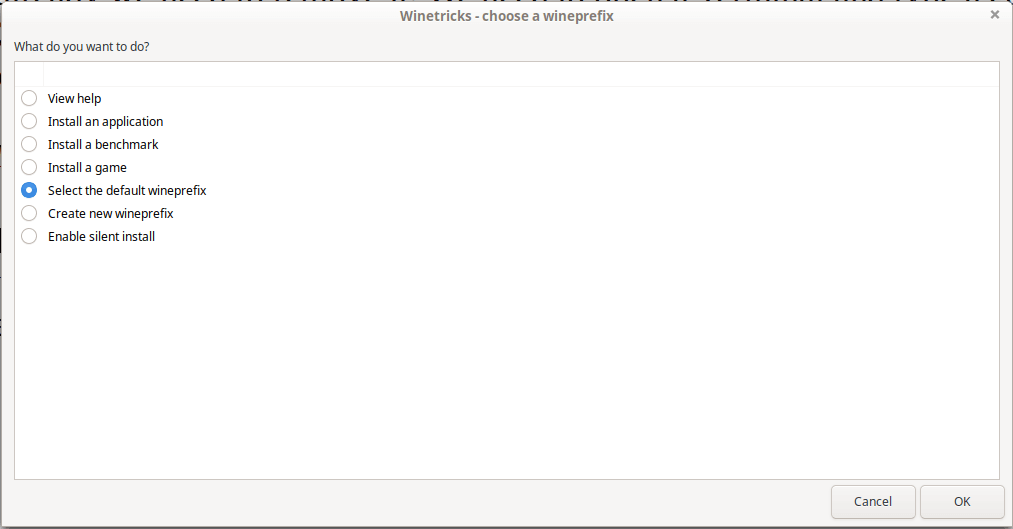
Yes, Winetricks tends to throw a few error messages at you but just do the Standard Windows User thing, ignore the message and keep clicking OK. When Winetricks opens you'll notice that "Select the default wineprefix" is already selected for you. Just hit OK. Then you get this screen:
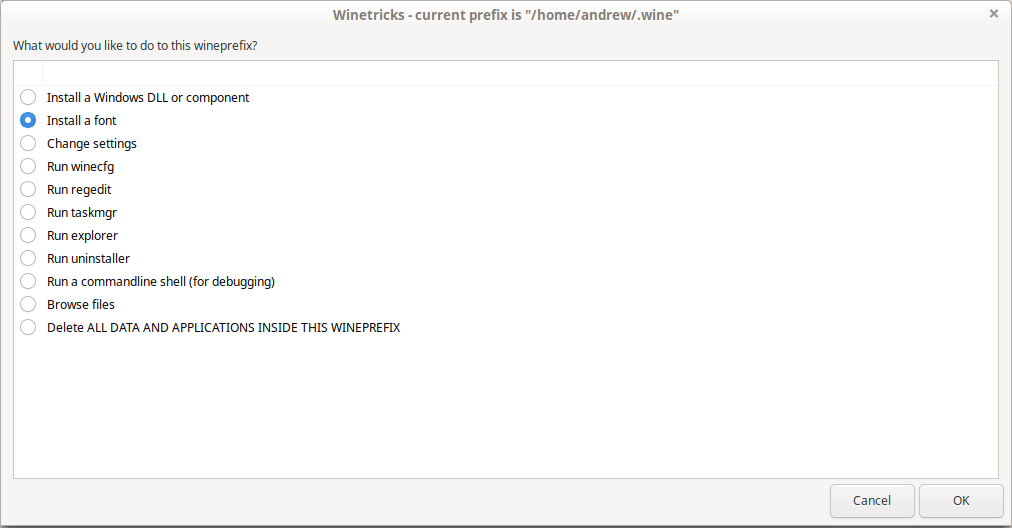
We need to install some Windows fonts first, that's the single biggest thing that stops old Windows games from running. We want to install the Corefonts and Tahoma. So click OK and in the next screen choose those two and hit OK. Once again Winetricks will throw lots of little error messages at you but just ignore them and keep clicking OK.
Eventually we get returned to the above screen, this time we want to select "Install a Windows DLL or component" and hit OK. This shows us a massive list of available Windows components but here is where you need to be careful. Wine will let you install all of them simultaneously, which will not work. We need to carefully select the components that suit the era of the games we want to play and install only those, no others. Having many versions of the same thing stops the whole system from working.
For our default fake drive that will run most of our games use the following setup. Do each of these components one at a time or Winetricks may crash.
Choose only:
- d3dx9_36
- dotnet40
- dotnet452
- vb6run
- vcrun6sp6
That's it, that's your default fake drive set up. From here you just put the game CD in and click on the Setup.exe file. With some Linux distributions like my Fedora 31, file associations don't get automatically set when you install Wine so at first when I double click on an .EXE file it tries to open it with File Archiver. To fix this do a right click on the .EXE file and choose Open With, under that menu you can choose Wine Program Launcher. You can also set that as the default program for opening .EXE files.
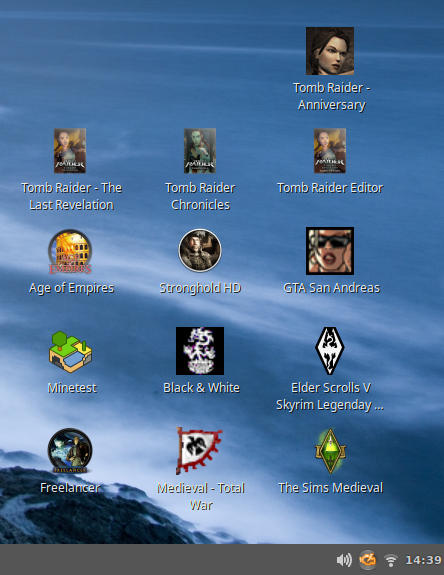
Most games will want to install their own versions of DirectX and DotNet, don't allow this. Force them to keep using the versions that were installed by Winetricks. Allowing games to install their own versions of these programs will corrupt your fake drive. Games that I have running under the above setup include:
- The Sims Medieval
- Medieval Total War -- the original
- Black and White -- the original
- Microsoft's Freelancer
- GTA San Andreas
- Stronghold
Most GOG games will play under this setup too.
Creating other fake drives (Prefixes)
The above setup only caters to a select set of games and programs from a particular time period, you probably want others as well. You can create as many different fake drives as you like and have each of them behave for a particular time period, one for old Win98 games, and another one for Win10 games, etc.
We need to type commands into a terminal again to do this, and we also need to use the command line to tell Winetricks which fake drive to operate on. So this gets a little bit more tricky to set up, but once you've installed a game it puts an icon on your desktop that operates as easily as it does in Windows.
So let's make a fake drive for a more modern game like The Elder Scrolls V -- Skyrim. For this we want a 64 bit fake drive and we want DirectX 11, etc. We use a similar command as previous to create the drive but this time it's 64 bit and we'll give it a different name so that we can tell the two apart, we'll call it .winewin7.
WINEARCH=win64 WINEPREFIX=~/.winewin7 winecfg That creates a 64 bit fake drive but if we just open Winetricks normally it will open in our default fake drive, we don't want that now, we want it to open the new 64 bit one we just created. You need to use the command line to do this:
WINEPREFIX=~/.winewin7 winetricks That command will open Winetricks in the new 64 bit drive. Just to check, take note of the top of the Winetricks window. After you've clicked OK for "Select the default wineprefix" it tells you what fake drive you're working on.
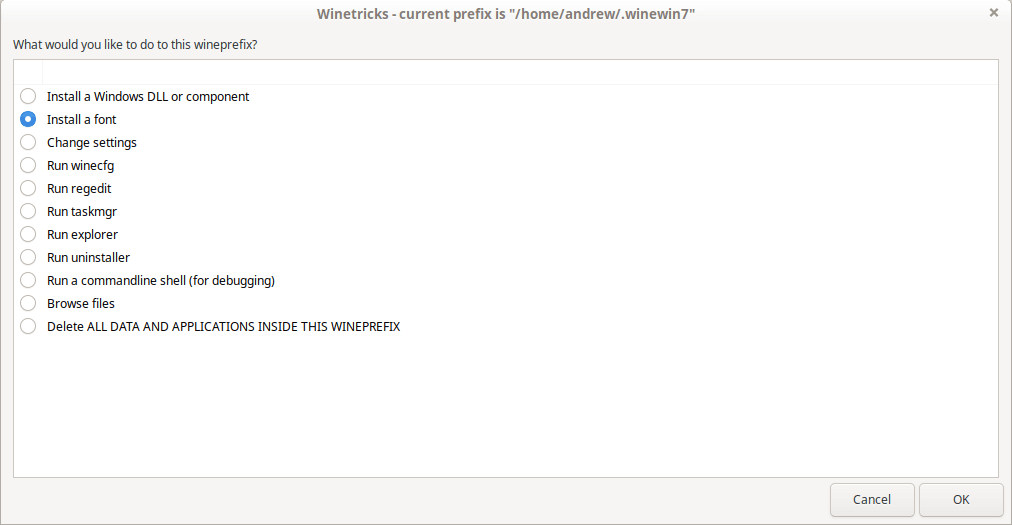
The same as last time, you need to go into "Install a font" first and install the Corefonts and Tahoma. Just like last time Winetricks is going to keep throwing errors at you, just ignore them. Then go in to "Install a Windows DLL or component" and one at a time install the following items:
- dotnet48
- vb6run
- vcrun2013
- d3dx11_43
- xact_x64
(Skyrim turned out to only be a 32 bit game, it also required xact to be installed for sound)
That's our fake Win7 drive set up, but now if we just click the Setup.exe file to install our game it will install to our default fake drive. We need to use that command line again to make the game install in the correct drive, and to do that it's easiest if we open a terminal in the folder that has the Setup.exe file in it.
Use your file browser, browse to where your game Setup.exe is, on a CD or in your download folder somewhere. Do a right click on that folder and from the little menu select "Open in Terminal".
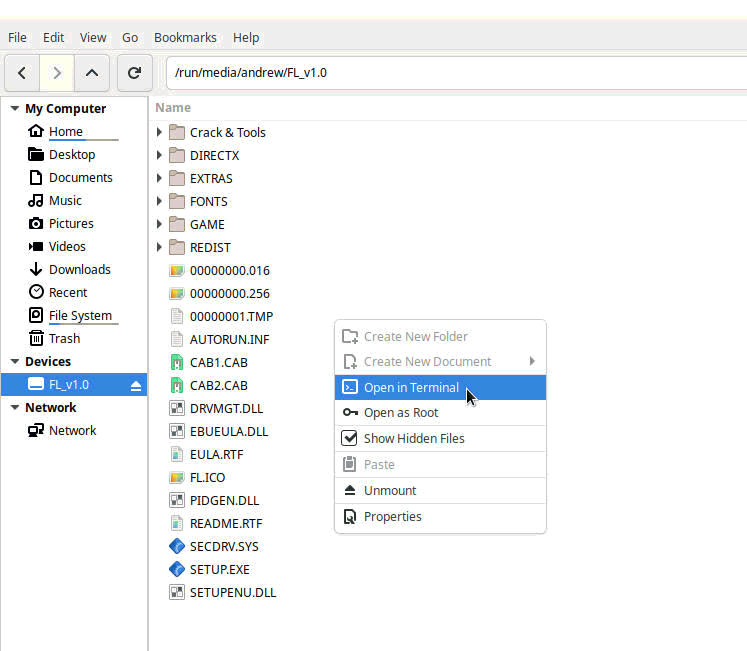
When the Terminal opens type in the following command:
WINEPREFIX=~/.winewin7 wine ./SETUP.EXE Depending on the game you may need to alter the last segment of that command. Remember that Linux is case sensitive so SETUP.EXE and Setup.exe are two different file names. Some games might need to be installed from a .msi file for example.
Once again, you only need to go through all this nonsense to install your games, once you have the game icon on your desktop it starts just as easily as it did in Windows.
Cheers, Andrew.
This tutorial was contributed by Andrew, we are very grateful for his contribution.
CD images and graphics fixes
Most file managers on Linux open an ISO file with a double-click. For broken graphics or a game that asks for its CD, use the same fixes as on Windows.
Many of our Windows games are CD images: for formats other than ISO, see our CD images tutorial. The fixes for copy protections and old graphics are on our Windows games page. Some of them, like cnc-ddraw, also work under Wine.
I need help!
We do not provide support for running abandonware games. Check the game in the Wine application database first: other players have often solved your problem already.
The Wine application database lists thousands of games with tips and test reports, and ProtonDB does the same for Steam's Proton. For questions, try the WineHQ forums or the Lutris forums.
First written by hand, and brought up to date in October 2026 against each program's own documentation and, where it exists, its source code. Game counts and file sizes come from our own catalogue. The update was drafted with the help of an AI assistant and checked by hand before publishing. If something here is out of date, tell us.