
As the years go by, more and more Windows games are added on the website: Windows games are now our largest platform, with about 12,000 titles, plus about 1,300 Windows 3.x games. Some of them still work quite easily, others are lucky enough to have an active community making patches and fixes to run them on the latest versions of Windows. And a few need an old Windows installed in an emulator.
This page goes from the easiest fix to the hardest. Try them in this order.
Start with the easy fixes
Many games from the late 90s and the 2000s run on Windows 10 or 11 with a little help. Try these five fixes first, before anything else on this page.
- Run the setup and the game as administrator: right-click the program, then Run as administrator. Old installers often want to write where modern Windows does not allow it.
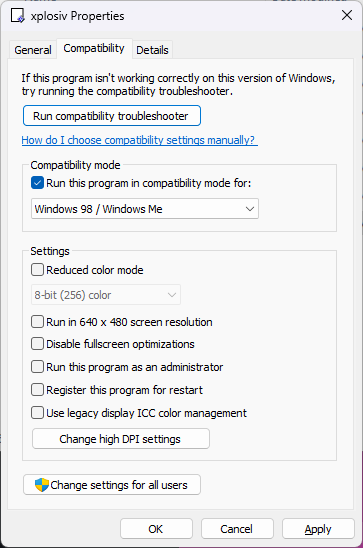
- Compatibility mode: right-click the program, Properties, Compatibility tab, and tick Run this program in compatibility mode for, then pick Windows 98 / Windows Me, Windows XP or Windows 7 in the list. The Reduced color mode and Run in 640 x 480 screen resolution options help some very old games.
- Install to a short folder like
C:\Games\rather thanC:\Program Files\. - The setup program does not start at all: many games of the Windows 95 era came with a 16-bit setup program, which 64-bit Windows refuses to run, even when the game itself would work. winevdm, explained below, often runs these old setup programs.
- The picture is tiny, blurry or cut off on a high-resolution screen: in the same Compatibility tab, click Change high DPI settings, tick Override high DPI scaling behavior, and try Application first, then System.
Install the old runtimes first
Old games expect parts of Windows that are no longer installed by default: DirectPlay, the DirectX 9 files, old Visual C++ libraries and .NET 3.5. Install them once, and many "missing file" errors never appear.
- DirectPlay, used by many games for multiplayer and sometimes just to start: type
optionalfeaturesin the Start menu, open Legacy Components, tick DirectPlay, then OK. - The old DirectX 9 files: Windows 10 and 11 have DirectX 12, but not the extra files of DirectX 9. Install the DirectX End-User Runtimes (June 2010): extract the download into a folder, then run
DXSETUP.exein it. It changes nothing else in Windows. - The Visual C++ libraries, from 2005 to today. The easiest way is the free Visual C++ Redistributable All-in-One, which installs every version at once, the very old ones included. Microsoft's own installers are on its page: for old games, take the x86 ones.
- .NET Framework 3.5, for some games and many tools of the 2000s: type
optionalfeatures, tick .NET Framework 3.5 (includes .NET 2.0 and 3.0). From Windows 11 version 26H1, it is no longer in that list: Microsoft gives a separate installer instead.
"A DLL is missing"
When a game says a .dll file is missing, the fix is almost always one of the runtimes above, or a file from the game's own CD. Never download single DLL files from "DLL download" websites: they are a common way to spread malware.
d3dx9_43.dll,xinput1_3.dll,XAPOFX1_5.dllor any otherd3dx,xinput,xaudioorx3daudiofile: install the DirectX June 2010 runtime above.msvcr71.dll,msvcr80.dll,msvcp100.dlland the othermsvcfiles: install the Visual C++ All-in-One above. Microsoft never made an installer formsvcr71.dll, but the All-in-One includes it.dplay.dllordplayx.dll: turn DirectPlay on, as above. If a game still asks fordplay.dll, copyC:\Windows\SysWOW64\dplayx.dllinto the game folder and rename the copydplay.dll.d3drm.dll: Direct3D Retained Mode, which Microsoft removed from Windows in Vista and never replaced. PCGamingWiki hosts a copy: put it in the game folder.dsound3d.dll: some games by Kuju Entertainment need this old DirectSound3D file to have any sound. PCGamingWiki hosts a copy: put it in the game folder. If the sound is still wrong, try DSOAL, in the Sound problems section below.binkw32.dll,smackw32.dll: the video player of the game itself. Copy the file from the game's CD into the game folder, or install the game again.- "Cannot find 'vids:IV50' decompressor", or a video that does not play: the game uses the Indeo video codec, which Windows still holds but no longer turns on. Open a Command Prompt as administrator, then type
cd C:\Windows\SysWOW64andregsvr32 ir50_32.dll. Microsoft turned Indeo off because it is a security risk, so only do this on a PC you use for games.
PCGamingWiki
PCGamingWiki lists fixes for thousands of PC games from the late 90s and 2000s: widescreen patches, crashes, missing sound, you name it. Check it before you try anything complicated.
We try to add a link to the right wiki page on every game page, so check out the game links below the game description. You can also search the wiki directly.
CD images
Most of our Windows games are CD images, perfect copies of the game disks. You need a mounting program to open most of them, and some games need a fix to run without their CD.
If you don't know how to use these files, read our tutorial. You may also run into these usual problems:
- The image is not a .iso file: several file formats exist for disk images. In our archives, you'll come across BIN/CUE, MDF/MDS, CCD/IMG and NRG. Windows only opens ISO files, so you will need to install a mounting program. You may also convert these files to ISO with WinBin2Iso, but you will lose the audio tracks (usually music) if there are any.
- Corrupted ISO: many ISO files can't be mounted with the ISO tool built into Windows. Install a mounting program, see this page.
- The game asks for the CD: most games have a copy protection that checks the original disk. You will need to replace the game program with a fixed one. Sometimes, we provide this replacement on the game page, labeled as "NoCD". Otherwise, look for a "crack" folder in the content of the CD image.
- The game starts, then nothing happens: many games from 1998 to 2008 are protected by SafeDisc or SecuROM. Microsoft removed the driver these protections need from Windows 10 and 11 for security reasons, so the game can't check its CD and silently quits. Don't try to install the old driver back. Look for an official patch that removes the CD check, a NoCD fix, or play the game in Windows XP in a virtual machine (see below).
- The NoCD file does not start: a few NoCD fixes are DOS programs, ending in
.COM. Windows 10 and 11 cannot run them: run them in DOSBox, on the game folder. - The game does not find its CD: install and play with the same drive letter. Some games do not look for their CD after drive F:, so mount the image as D:, E: or F:. WinCDEmu asks for a letter when you mount an image, and its settings let you choose the letters it uses.
Mount the image and start the game in one click
A small script can mount the image, start the game and unmount the image when you quit. Write it once per game, and start the game from it.
With WinCDEmu, create a text file named play.bat in the game folder, with these lines, and change the paths and the program name for your game:
@echo off "C:\Program Files (x86)\WinCDEmu\batchmnt.exe" "C:\Games\MyGame\game.iso" F: cd /d "C:\Games\MyGame" game.exe pause "C:\Program Files (x86)\WinCDEmu\batchmnt.exe" /unmount F: Double-click play.bat. When you quit the game, press a key in the black window, and the image is unmounted.
Windows 3.1 games
64-bit Windows can't start programs made for Windows 3.1. winevdm fixes this for most games; for the others, install Windows 3.1 in DOSBox-X.
Download the latest winevdm release (also called otvdm) and extract it. If Windows says that VCRUNTIME140.dll is missing, install the 32-bit (x86) Microsoft Visual C++ Redistributable first. Then run the install shortcut once. After that, Windows 3.1 programs start with a double-click, like any other program. Many thanks to WeAreTheBorg for sharing this tip.
If one program is not detected, drag and drop it over otvdmw.exe instead. This also works without the install step.
Drag and drop of SkiFree over otvdmw.exe: the Windows 3.1 game starts on Windows 11.
If a game refuses to run that way, install Windows 3.1 in DOSBox-X, which has a step by step guide for every version of Windows it supports. You will find a copy of Windows 3.x on WinWorld. Older tutorials for the original DOSBox are still around, like this one.
Windows 95 and 98 games
Many Windows 95 and 98 games won't run on recent Windows, or run with broken graphics or no sound. The sure way is to install Windows 95 or 98 in an emulator: it takes about an hour to install it all properly, once, then every game of that era works.
Pick one of these, from the easiest to the most accurate:
- DOSBox-X: installs Windows 95 or 98 without much trouble, on Windows, Mac and Linux. Follow the Windows 98 guide, which also explains Windows 95. Good for games up to 1998 or so.
- 86Box: emulates a whole PC of the time, down to the motherboard, the sound card and the 3dfx Voodoo card. More work to set up (you need its ROM files, and to pick your hardware), but the most accurate choice for late 90s 3D games. Available for Windows, Mac and Linux. It started as a fork of PCem, which works the same way and has a good tutorial for Windows 95 games.
- A virtual machine: VirtualBox (free) or VMware Workstation (free for everyone since 2024). Faster than an emulator, but Windows 95 and 98 are not really made for them: graphics drivers are the weak spot, and 3D games often won't work. For VirtualBox, read this installation guide and this second guide before you start: BOTH of them. You can also use pre-configured Windows 98 VMware images, available at WinWorld.
- windows95, made by Felix Rieseberg: Windows 95 packed as a simple app for Windows, Mac and Linux. Nothing to install, a nice way to try a small game.
- A real old PC: a second-hand office PC of 2011 to 2013 still runs Windows XP, and with it every game of the era. Our page about building a Windows XP PC explains which PC to buy.
You will need a copy of Windows 95 or 98 for all of these: WinWorld has them.
Windows XP games
Most Windows XP games run on Windows 10 or 11 after the easy fixes above. If one refuses, install Windows XP in VirtualBox or VMware, or on a real old PC: see our page about building a Windows XP PC.
Some games will work perfectly, some won't. We rarely have all the resources necessary to get these games to install and then be played, so you may have to look over the web for a fixed setup or program file. If you find a good tutorial, please post the URL in the comments or drop us a message.
Graphics fixes
Most crashes and graphics problems come from old versions of DirectX, the Windows graphics system, or from 3dfx cards that no longer exist. The tools below replace these old parts with modern ones.
Most of them come as a few files to copy next to the game program: read their readme.
DxWnd: the Swiss army knife
DxWnd starts a game with fixes applied, without changing the game files. Try a ready-made profile for your game before you change any option.
You add a game to its list, and DxWnd starts it for you. It was made to run fullscreen games in a window, which alone solves many crashes and resolution problems, but it does much more: it can slow down games that run too fast, fake the CD drive and its music tracks, fix colors, and has hundreds of compatibility options. Many ready-made game profiles are shared by its users, with the download. It's Windows only, and still updated regularly.
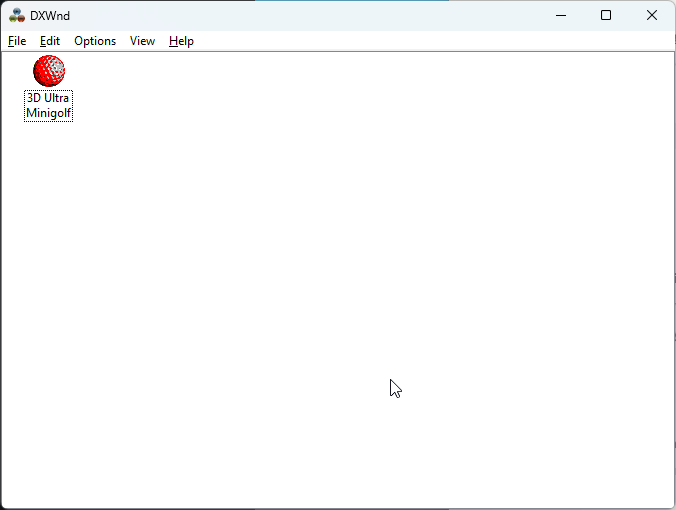
Importing a ready-made profile for 3-D Ultra Minigolf, pointing it at the game, then starting it in a window.
DirectDraw 2D games
Classic 2D games from the mid 90s to the mid 2000s can crash easily, or show wrong colors. Try cnc-ddraw to make them playable.
Some examples of these 2D games (see the official site for a longer list): Age of Empires, Dune 2000, Dungeon Keeper, Grand Theft Auto, Moorhuhn, War Wind... cnc-ddraw also works with early 3D games that use software rendering, such as Blood II, Carmageddon or Sega Rally.
If cnc-ddraw does not help, try DDrawCompat: it fixes DirectDraw and early Direct3D (versions 1 to 7) on modern Windows. Copy its ddraw.dll next to the game program. In our test, it fixed the broken colors of Barbie: Pet Rescue at once.
Windows may then show "Windows protected your PC" when you start the game, because it does not know the publisher. Click "More info", then "Run anyway".
3dfx games
Many late 90s games were made for 3dfx Voodoo cards, which no longer exist. nGlide and dgVoodoo2 emulate them, and are free.
The second half of the 90s was very exciting, as video games started to benefit from 3D acceleration hardware. The 3dfx company released the Voodoo Graphics cards in 1996, which provided 3D acceleration for games that supported their technology, called Glide. Performance and graphics were way ahead of the competition (Riva, Matrox, S3, ATI...) but came at a price. 3dfx released its last Voodoo card in 2000, marking the end of 3dfx supported games.
Luckily, Glide can be emulated nowadays using nGlide, a free 3dfx Voodoo Glide wrapper made by Zeus Software. Very easy to use: just install and play for most games, but visit the compatibility page first, as many games require a patch or some tweaking.
The nGlide setup has no extra offer and raised no warning in our test. Then open the game's video options and choose Glide as the graphics card. For example, 4x4 Evolution ran very well with Glide, 16-bit colors and a 640x480 resolution. Some other games need a few tries with these settings.
Another great Glide wrapper is dgVoodoo2, which also handles old DirectX games (see below). Both programs are very useful, as one may work better than the other.
DirectX games
dgVoodoo2 runs old games using DirectX 1 to 9 through modern graphics: copy its files next to the game program. If it doesn't help, try the alternatives below.
- d3d8to9 turns DirectX 8 into DirectX 9, which modern Windows handles much better. Copy its
d3d8.dllnext to the game program, and install the DirectX June 2010 runtime first. Try it first for a DirectX 8 game. - DXVK turns DirectX 8 to 11 into Vulkan. Made for Linux, it also works on Windows and fixes many games of the 2000s.
- dxwrapper, an ongoing project with many fixes, which may prove difficult to use.
- WineD3D for Windows turns DirectX into OpenGL, see the readme file in the download.
Widescreen and high resolutions
Most games of this era were made for 4:3 screens at 640 x 480 or 800 x 600. Community patches give many of them a proper widescreen picture.
The Widescreen Gaming Forum lists, game by game, how to get a widescreen picture, and Flawless Widescreen patches many games for you. PCGamingWiki also has a widescreen section on most game pages.
Other common problems
These problems are not about graphics. Each one has a short fix, once you know what causes it.
The game runs too fast
Many games of the late 90s tie their speed to the frame rate, and a modern PC draws hundreds of frames per second. Limit the frame rate to 30 or 60.
The control panel of your graphics card can do it for one game: Max Frame Rate in the NVIDIA Control Panel, Radeon Chill in AMD Software. RivaTuner Statistics Server, installed with MSI Afterburner, works with any card. This guide on Steam shows each one, step by step. DxWnd and dxwrapper have a frame limit of their own, too.
The game crashes on a computer with several cores
Some games of the late 90s and early 2000s were made for one processor core, and crash or run at the wrong speed on several. Make them run on one core only.
The simplest way is a script: create a play.bat file in the game folder with the line start "" /affinity 1 game.exe, and start the game from it. 1 means the first core. In the Task Manager, Details tab, right-click the game and choose Set affinity: it works too, but only until you quit the game. DxWnd and dxwrapper also have a single-core option.
The registry on 64-bit Windows
Old fixes often say to change a key under HKEY_LOCAL_MACHINE\SOFTWARE. On 64-bit Windows, a 32-bit game reads that part of the registry somewhere else, so the change must go there.
Old games are 32-bit programs, and 64-bit Windows sends them to HKEY_LOCAL_MACHINE\SOFTWARE\WOW6432Node instead. So when a fix says HKEY_LOCAL_MACHINE\SOFTWARE\Publisher\Game, open HKEY_LOCAL_MACHINE\SOFTWARE\WOW6432Node\Publisher\Game in the Registry Editor (regedit). You find the game's install folder and settings there too.
Data Execution Prevention
DEP is a security feature that stops some old games, and many old copy protections and NoCD fixes, with no clear message. By default it only covers Windows itself, so this only matters if DEP was turned on for every program.
To turn it off for one game: open Windows Security, then App & browser control, Exploit protection, Program settings. Click Add program to customize, choose the game program, find Data Execution Prevention (DEP), tick Override system settings and turn it off. It only works for 32-bit programs, which old games are.
The game freezes in fullscreen
A frozen fullscreen game can hide everything else. Keep the Task Manager ready before you start, and you can always get out.
Before you play, open the Task Manager (Ctrl+Shift+Esc), and turn on Always on top: in Windows 11, in its Settings, under Window management. If the game freezes, press Ctrl+Shift+Esc or Alt+Tab, and end the game in the Task Manager. If nothing shows, press Win+Ctrl+D to open a new desktop, end the game in the Task Manager there, then press Win+Ctrl+F4 to close that desktop.
Joysticks, gamepads and wheels
An Xbox pad with both triggers on one axis, a wheel whose pedals the game cannot see, an old gameport joystick: each has a fix.
Our page about controllers explains them, from the Game Controllers panel of Windows to Xidi, x360ce and Steam Input.
Sound problems
Many games of the 2000s used EAX, 3D sound effects that Windows has not played since Vista. DSOAL brings them back, on any sound hardware.
DSOAL replaces the game's sound with OpenAL Soft, which plays EAX effects and 3D sound again. Download it, and copy dsound.dll, dsoal-aldrv.dll and alsoft.ini from its Win32 folder next to the game program. With a Creative sound card, Creative's own ALchemy does the same job.
Other fixes for common sound problems:
- The sound crackles, or is missing: open the Sound settings of Windows (
mmsys.cpl), your device, Properties, Advanced, and try another Default Format. PCGamingWiki suggests 24 bit, 48000 Hz. - All sound goes when you turn the music off: some games do this. Leave the music on in the game's options, and turn its volume down instead.
- dxwrapper also has a sound fix, if nothing else helps.
Games for Windows Live
Some games of the late 2000s need GFWL (Games for Windows Live) to start. Install it with our installer, in Windows 7 compatibility mode.
To install it on Windows 10 or 11, use the installer: right-click on gfwlivesetup.exe, go to Properties, click on the Compatibility tab and set compatibility to Windows 7, click OK. Then right-click on gfwlivesetup.exe and select Run as administrator.
The installation can take several minutes, because Windows installs .NET Framework 3.5 first and downloads it while the setup runs. Stay connected to the Internet and wait until it ends. Restart your PC when the setup asks for it.
If the game still refuses to start, or you can't sign in, the PCGamingWiki page on GFWL lists the fixes, including community patches that remove GFWL from the game.
Issue with audio CDs
Some games of the late 90s and early 2000s play their music from the CD, and recent Windows versions cannot play it the old way. _inmm.dll fixes this. It patches the game program, so that the game plays the music from the disc image, or from MP3 files.
These games used a "mixed mode" CD: the game data was on the first track, and the music was on audio tracks, like on a music CD. You could play the disc on a hi-fi or a CD player. When you played the game, you could hear the CD drive read the music, and the game often froze for a moment when a track started.
In our test, Redline Racer plays no music on Windows 11 without _inmm.dll, and plays its music with it.
An ISO file cannot hold audio tracks. This is why these games come as BIN/CUE, MDF/MDS, NRG or CCD/IMG images, and why you need a mounting program that mounts all the tracks. In our tests, DAEMON Tools Lite did it. Its setup offers extra software, so read each screen and untick what you do not want.
Play the music from the disc image
Mount the image, tell _inmm.dll which drive it is, patch the game program, and copy the DLL into the game folder.
- Download _inmm238.zip and extract the archive. It holds
_inmm.dll,_inmmcnf.exe,_inmmcnf.iniand_inmmserv.exe. - Mount the disc image with your mounting program. Set the virtual drive letter to E or F. With another letter,
_inmm.dllmay fail and show a warning. - Check that the music is there. Open This PC, right-click the virtual drive, click Show more options (Windows 11), then click Play. Windows Media Player Legacy starts and plays the game music. If you do not see Play, the image has no audio tracks, or the mounting program did not mount them.
- Start
_inmmcnf.exe. Click the_inmm.inieditor tab, then the CD Tracks button. Select the letter of the virtual drive, click Get, then click OK. - Save the configuration file in the game folder. You can also save it anywhere and copy it to the game folder later.
- Make a backup copy of the game program (the EXE file). Then drag the game program onto
_inmmcnf.exeand confirm the patch. The game program now looks for_inmm.dlland for the audio files named in the configuration file. - Copy
_inmm.dllinto the game folder. If you forget it, the game shows a message. - Start the game. The music plays. Keep the image mounted while you play: the music comes from it.
Steps 4 to 8 for Redline Racer, with its disc image mounted as drive E: reading the music tracks, saving the configuration file, patching the game program and copying _inmm.dll.
Play the music from MP3 files
You can use MP3 files instead of the disc. The sound quality is lower than the CD. With MP3 files on your hard disk, you do not need to insert the CD, if the game has no CD check.
- Mount the image, and check that the music is there (steps 2 and 3 above).
- Click the search field in the Windows taskbar, type
wmp, and start Windows Media Player Legacy. - Find the disc image in the left bar. You see Track 1, Track 2, Track 3, and so on.
- Select all the tracks and click Rip CD. MP3 is the default format.
- When the rip ends, find the MP3 files in your Music folder.
- In
_inmmcnf.exe, use the_inmm.inieditor to give these MP3 files to the game. Save the configuration file, and copy it to the game folder. - Patch the game program and copy
_inmm.dllinto the game folder (steps 6 and 7 above).
_inmm.dll was originally published on cryo.jp. We mirror version 2.38, shared by Patrxgt on the PCGamingWiki community files. It has an updated _inmmcnf.ini and an English translation. Many thanks to Patrxgt.
Multiplayer over a local network
Many games of the 90s used the IPX network protocol for LAN parties, which Windows dropped long ago. IPXWrapper brings it back.
Copy the IPXWrapper files next to the game program, and the game can find the other players again, on your network or over the internet.
Windows games on a Mac
A Mac can run many Windows games without Windows, with Porting Kit or CrossOver. For games that need Windows 95, 98 or XP, use an emulator.
- Without Windows: Porting Kit (free) and CrossOver (paid, with a free trial) run many Windows games directly, thanks to Wine. Porting Kit has ready-made installers for many classics.
- With Windows 95/98/XP: on an Apple Silicon Mac (M1 and later), virtual machines like VMware Fusion can't run these old Windows versions. Use an emulator instead: DOSBox-X or 86Box, as explained above. On an older Intel Mac, VMware Fusion is free and works fine.
Windows games on Linux
Running Windows games under Linux can work surprisingly well, often better than on a recent Windows. We have a dedicated tutorial here.
I need help!
We do not provide support for running abandonware games. For old Windows games, ask on the Vogons forums or the PCGamingWiki community.
Tell them which game, which Windows and what happens: you will get an answer much faster.
First written by hand, and brought up to date in October 2026 against each program's own documentation and, where it exists, its source code. Game counts and file sizes come from our own catalogue. The update was drafted with the help of an AI assistant and checked by hand before publishing. If something here is out of date, tell us.