You are on the beta version of My Abandonware. The live site is still myabandonware.com. Your favorites and ratings here are copied to the live site. Comments and other changes are not — we delete them every morning at 08:00 Paris time, when this site goes down for about an hour. Leave feedback through this link to Pastel (email required).
The beta goes down at 08:00 Paris time, in a few minutes. We rebuild the database from the live site. It comes back in about an hour.
no me deja dios me dice q necesita cd, no me sale la opcion de compatibilidad ayuda
0
ivory18 Jun. 2026
if your having issues try this! The game would run for me but the display would turn into multiple grayscale boxes during cutscenes & riding. This fixed it!
credit to laternwretch
Got this bad boy to play with no problems. Follow these instructions, see if it helps! 1. Download and unzip. 2. Create a new folder on your desktop. 3. Mount the ISO and with file explorer open, right-click on the Mounted BRC CD and click copy. 4. Paste that into the new folder on your desktop. 5. In the pasted folder, right-click on the SETUP.exe and go to Properties. 6. In the Compatibility tab, check the box to run it in compatibility mode for Windows XP Service Pack 2. 7. Click OK, then right-click the SETUP.exe and run as Administrator.
Chances are you’re get the Windows pop-up to start the installation, but nothing will happen. If that’s the case, read on. If the set-up runs fine, go to Step 8 and skip the next paragraph.
After you run the SETUP.exe as Administrator, open task manager. You should see something like Setup32 or something in the Background Processes in the Processes tab. Go over to the Details tab, find that Setup32 process and right-click. Select Analyze Wait Chain. The set-up is the first option, and anything under it is prevent it from continuing. Close that. The set-up should instantly start.
8. Start the SETUP, let it install the game. 9. Once installed, go to the first folder, not your copied folder. You want the OG Unzipped folder. Find the Barbie Riding Club application in there, right click, and go to properties. 10. Go to compatibility mode, have it run in Winodws XP Service Pack 2. 11. Turn on reduced color mode to the 8-bit setting and click OK to save your settings. 12. Using that same application in the original unzipped folder (Not your copied folder!) Open the game and run it. 13. When you get to the part where you enter your name, don’t enter anything. For some reason, entering anything will crash the game. Just click the stable button.
Baddaboom. That’s exactly what I did and I experienced 0 issues. Everything funcitons correctly, no weird grey boxes, no sideways against the screen nonsense. Just me and my nostalgia from 26 years ago for an hour.
Hope this helps someone!
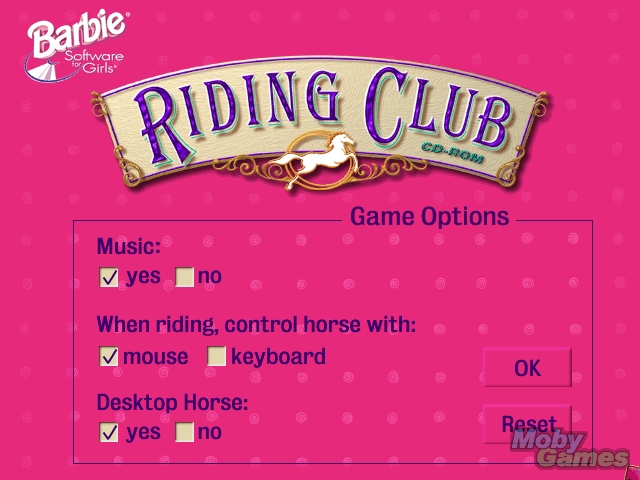
3
ashweeeee29 Dec. 2025
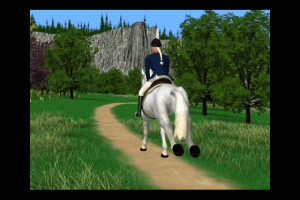
I have changed display settings and compatibility mode, but anytime riding is 1st person the display switches to four small black and white videos like another person said. I haven't been able to find a work around.
For anyone getting the CD Rom error, once extracted, go into the folder and run SETUP Application. I had to follow a prompt from Microsoft to download something to allow use of the 16bit installer. Again, I am still getting issues in first person, but this will at least allow you to launch and play!
1
Bridget23 Nov. 2025
Dont download this, it just says install from CD
1
NeNo14 Nov. 2025
not working
0
Lala22 Oct. 2025
Italian language?
0
Wren11 Aug. 2025
Did everything that was suggested and the game didn't work... Any suggestions?
Se ve lindo el juego lo voy a provar, ademas ami me encantan los caballos entonces me la paso buscando juegos o de: EQUITACION, POLO, ETC... Me encantan asique lo provare el juego se ve bueno asique.... VAMOS A ALLA!!! Chau!
0
loz12 Aug. 2024
i tried the above steps and still got the "please install disc" error
1
x28 Apr. 2024
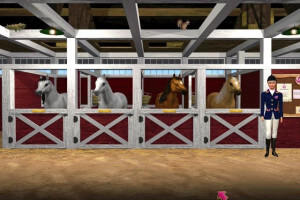
Game is okay during some parts but the riding gives me 4 black and white images - when I stop riding full colour returns and it's fine
2
Annoyed17 Feb. 2024
I did every single step below and the main menu of the game finally worked and I got excited but the second the game starts all the visuals are still messed up and I can't play.
1. Download and install the game 2. Create a desktop shortcut to the application 3. Right-click the desktop shortcut and select "properties". Go to the "compatibility" tab. 4. Check "run this program in compatibility mode for" and select Windows 95 5. Also check these options: - Reduce color mode (16-bit color) - Run in 640 x 480 screen resolution - Run this program as Administrator
1
Palomino14 Feb. 2024
I just get a blank screen after I do the install and compatibility instructions :( disappointing
1
Cat15 Oct. 2023
Once I check my options on the main screen, the screen goes black and it doesn't proceed, is there any way around that?
-1
May07 Oct. 2023
Top comment
I get an error: please instal CD ;/
10
grace_grape01 Sep. 2023
Top comment
Fix the color / aspect ratio display issues with these steps!
1. Download and install the game 2. Create a desktop shortcut to the application 3. Right-click the desktop shortcut and select "properties". Go to the "compatibility" tab. 4. Check "run this program in compatibility mode for" and select Windows 95 5. Also check these options: - Reduce color mode (16-bit color) - Run in 640 x 480 screen resolution - Run this program as Administrator
Apply changes. Open the application and it should work!
12
No comment nor review for this game at the moment.







 English
  Spanish
  French
  Dutch
Dutch 



Comments and reviews
Bgujbvghjj
no me deja dios me dice q necesita cd, no me sale la opcion de compatibilidad ayuda
if your having issues try this! The game would run for me but the display would turn into multiple grayscale boxes during cutscenes & riding. This fixed it!
credit to laternwretch
Got this bad boy to play with no problems. Follow these instructions, see if it helps!
1. Download and unzip.
2. Create a new folder on your desktop.
3. Mount the ISO and with file explorer open, right-click on the Mounted BRC CD and click copy.
4. Paste that into the new folder on your desktop.
5. In the pasted folder, right-click on the SETUP.exe and go to Properties.
6. In the Compatibility tab, check the box to run it in compatibility mode for Windows XP Service Pack 2.
7. Click OK, then right-click the SETUP.exe and run as Administrator.
Chances are you’re get the Windows pop-up to start the installation, but nothing will happen. If that’s the case, read on. If the set-up runs fine, go to Step 8 and skip the next paragraph.
After you run the SETUP.exe as Administrator, open task manager. You should see something like Setup32 or something in the Background Processes in the Processes tab. Go over to the Details tab, find that Setup32 process and right-click. Select Analyze Wait Chain. The set-up is the first option, and anything under it is prevent it from continuing. Close that. The set-up should instantly start.
8. Start the SETUP, let it install the game.
9. Once installed, go to the first folder, not your copied folder. You want the OG Unzipped folder. Find the Barbie Riding Club application in there, right click, and go to properties.
10. Go to compatibility mode, have it run in Winodws XP Service Pack 2.
11. Turn on reduced color mode to the 8-bit setting and click OK to save your settings.
12. Using that same application in the original unzipped folder (Not your copied folder!) Open the game and run it.
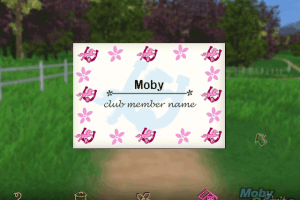
13. When you get to the part where you enter your name, don’t enter anything. For some reason, entering anything will crash the game. Just click the stable button.
Baddaboom. That’s exactly what I did and I experienced 0 issues. Everything funcitons correctly, no weird grey boxes, no sideways against the screen nonsense. Just me and my nostalgia from 26 years ago for an hour.
Hope this helps someone!
I have changed display settings and compatibility mode, but anytime riding is 1st person the display switches to four small black and white videos like another person said. I haven't been able to find a work around.
For anyone getting the CD Rom error, once extracted, go into the folder and run SETUP Application. I had to follow a prompt from Microsoft to download something to allow use of the 16bit installer. Again, I am still getting issues in first person, but this will at least allow you to launch and play!
Dont download this, it just says install from CD
not working
Italian language?
Did everything that was suggested and the game didn't work... Any suggestions?
Riding For A long Time And I Like It Vary Mush
Dutch version :
https://archive.org/details/bpaardrijclub/
Se ve lindo el juego lo voy a provar, ademas ami me encantan los caballos entonces me la paso buscando juegos o de: EQUITACION, POLO, ETC...
Me encantan asique lo provare el juego se ve bueno asique.... VAMOS A ALLA!!!
Chau!
i tried the above steps and still got the "please install disc" error
Game is okay during some parts but the riding gives me 4 black and white images - when I stop riding full colour returns and it's fine
I did every single step below and the main menu of the game finally worked and I got excited but the second the game starts all the visuals are still messed up and I can't play.
1. Download and install the game
2. Create a desktop shortcut to the application
3. Right-click the desktop shortcut and select "properties". Go to the "compatibility" tab.
4. Check "run this program in compatibility mode for" and select Windows 95
5. Also check these options:
- Reduce color mode (16-bit color)
- Run in 640 x 480 screen resolution
- Run this program as Administrator
I just get a blank screen after I do the install and compatibility instructions :( disappointing
Once I check my options on the main screen, the screen goes black and it doesn't proceed, is there any way around that?
I get an error: please instal CD ;/
Fix the color / aspect ratio display issues with these steps!
1. Download and install the game
2. Create a desktop shortcut to the application
3. Right-click the desktop shortcut and select "properties". Go to the "compatibility" tab.
4. Check "run this program in compatibility mode for" and select Windows 95
5. Also check these options:
- Reduce color mode (16-bit color)
- Run in 640 x 480 screen resolution
- Run this program as Administrator
Apply changes. Open the application and it should work!
No comment nor review for this game at the moment.