
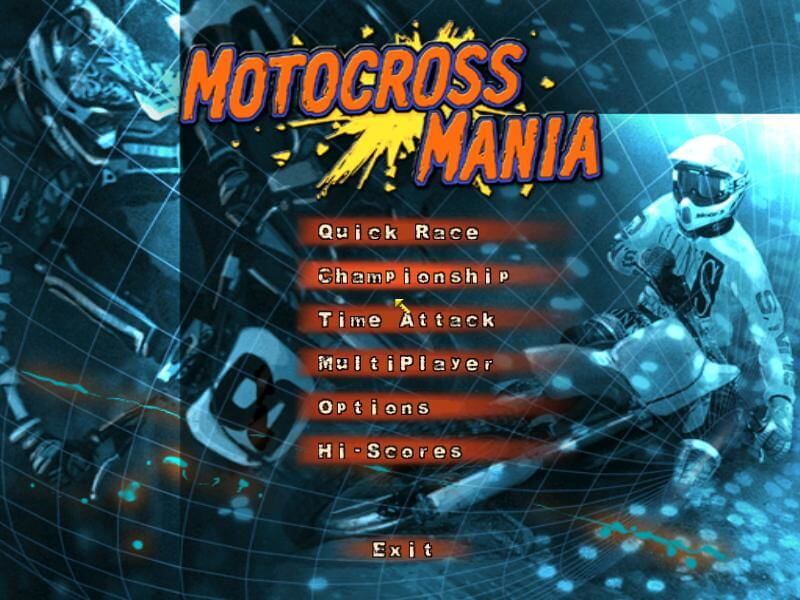
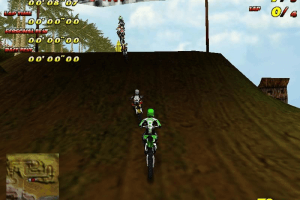
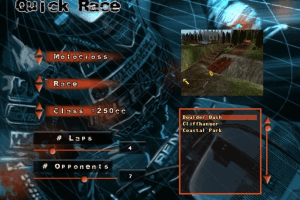
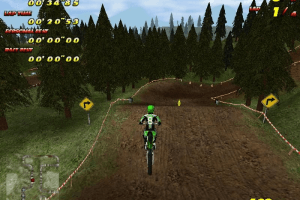
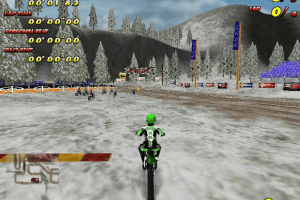
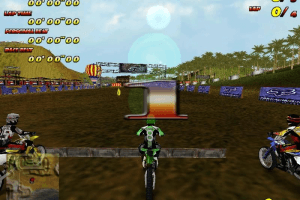
How to Play
The game with patch and NoCD has been tested on Windows 7 64-bit, works okay. But sometimes the game doesn't work on modern systems, for troubleshooting check our Notes
Install & play guide:
- Mount the disc image. You will need the utility for mounting disc image files, like WinCDEmu, UltraISO, Alcohol 52%/Alcohol 120% or Daemon Tools Lite
- Install the game (if autorun doesn't work - simply launch the installation from Setup.exe inside the disc)
- Install the patch (simply copy files from the archive and replace the original files inside the game folder)
- After that install NoCD (copy files from the archive and replace the original files inside the game folder)
- Open the directory with the game and find MxMania.exe and MxManiaUS.exe. Right click on both exe-files - Properties - Compatibility - Set "Run this app in compatibility mode with Windows 2000 or XP" and "Run as administrator"
- Launch the game and play. If the game doesn't work - try to launch the game, then open Task Manager (Ctrl+Alt+Del by default) and check for processes MxMania.exe and rundll32.exe. Close MxMania.exe but don't touch rundll32.exe (it's a Windows app for running old apps from 32-bit operational systems, most old games running through rundll32.exe). Now try to launch the game again, it must work. Don't forget to close rundll32.exe process in Task Manager after finishing playing
Notes:
- If the installation doesn't start - try to launch Setup.exe in compatibility mode with old version of Windows (98, 2000 or XP)
- It is recommended to install DirectX from the disc
- The game works on DirectX 6, so if you're using Windows 8, 8.1, 10 or 11 - you probably will need to enable DirectPlay: Go to Control Panel, and select 'Programs'. Select 'Turn Windows features on and off', click on 'Legacy Components' and check the box 'DirectPlay'. Select OK, once the installation is done, restart your computer
- It is recommended to install RAD Video Tools and K-Lite Codec Pack for the correct work of in-game videos
- The game is using CD Audio music, which means that the disc image must be mounted in virtual drive if you want to hear the music
- If you have troubles with running the game - try to run it through dgVoodoo utility (here's the guide how to use it with DirectX 1-7 games; dgVoodoo requires video card with DirectX 9 support, so it doesn't work on most of Intel graphics)
- If you have graphical glitches, like flickering models - use dgVoodoo
- The game doesn't have FPS cap, which can result in broken in-game physics if the game runs on more than 60 FPS. You need to limit game's framerate, use dgVoodoo to do that: open dgVoodoo.conf with Notepad and find the line FPSLimit = 0. Change "0" to "60" to limit the game's framerate to 60 FPS
- If you don't know how to use dgVoodoo - you can simply install repack by MagiPack(also mirrored on this page), it has CD music and dgVoodoo for the correct work on modern systems, including Windows 10
 English
  French
  Dutch
Dutch 




Comments and reviews
Any tips/tutorials on how to get intro/cutscenes to work?
No music on the patched version, then how I do this to add music in this game?
Very nostalgic. Super easy to set up, just click install and go. No fiddling with compatibility settings needed. I used the Repack.
No comment nor review for this game at the moment.