How to Play
Be careful! Original DVD release was using infamous StarForce DRM that can break your system. Make sure to use NoCD for that version. We added that release for archival purpose only.
Better use DRM-Free version of the game from here or from Space Rangers 2: Dominators - Reboot edition
The game has been tested on Windows 7 64-bit and Windows 10, works fine. You may experience some small troubles when you play the game on modern systems, check our Guide and Notes for details
Install & play guide:
- To install DVD release you will need the utility for mounting disc image files, like WinCDEmu, UltraISO, Alcohol 52%/Alcohol 120% or Daemon Tools Lite
- After you installed DVD release - make sure to use NoCD, copy Rangers.exe from NoCD archive and put it into game directory, agree to replace original file
Installation of DRM-Free version is very easy - it it simple installer, just run Setup file and install the game.
After you installed the game - run it in compatibility mode with Windows 98/ME and as administrator
Notes:
- If the installation doesn't start - try to launch Setup.exe in compatibility mode with old version of Windows (98, 2000 or XP)
- Original DVD release was using infamous StarForce DRM that can break your system. Make sure to use NoCD for that version, otherwise StarForce drivers will be automatically installed on the first launch of the game.
- The game works on DirectX 8, so if you're using Windows 8, 8.1, 10 or 11 - you need to enable DirectPlay: Go to Control Panel, and select 'Programs'. Select 'Turn Windows features on and off', click on 'Legacy Components' and check the box 'DirectPlay'. Select OK, once the installation is done, restart your computer
- It is recommended to install all versions of Microsoft Visual C++ Redistributable for the correct work of the game
- Also it is recommended to install RAD Video Tools and K-Lite Codec Pack for the correct work of the game
- The game must be run in compatibility mode with Windows 98/ME, otherwise it will not work on modern systems. If it didn't work - run it in compatibility mode with Windows 95
- If you have black screen at launch or any other graphical problem - use ddraw.dll by StarMind, it is modified version of dll-file from DDRawCompat, specially created for this game. Simply put ddraw.dll in game folder, next to exe-file.
- Alternatively, you can use DxWnd: run DxWnd -> Edit -> Add, choose the path to game. Click
Hook DirectDraw, in Resolution set the resolution you want, and choose if you want to play in Fullscreen or Windowed mode. Click "OK" to save setting and run the game from the list. If mouse cursor disappeared - in game settings change "Cursor support" from Hardware to Software - For Windows 10 users: if compatibility mode with Windows 98/ME didn't work - try to run in compatibility mode with Windows Vista or Windows 7, it helped some users. Also, disable Fullscreen Optimization and any display scaling/DPI Settings modes
- For Windows 10 & 11 users: if ddraw.dll method didn't help - try to use combination of WineD3D and DXVK, download both and extract 32-bit libraries from the archive into game directory. That method should be useful for Windows 11 users, we found that advice on forums, but we didn't test it ourselves
- Some users compain that intro videos doesn't work, sometimes the game even freeze at intro video. Press ESC few times to skip intro videos, if it didn't help - modify config-files to skip intro videos
- By default the game supports only 800x600 or 1024x768 resolutions. But you can run the game in high resolutions by using Resolution Patch. Simply run patch-file, set the resolution you want and click on install (make sure that game directory is not "Read-only" or you couldn't install the patch). Patch will create RangersNewRes.exe file, run the game from that exe-file to play with new resolution. Please note that the patch might be not compatible with ddraw.dll, so if you're running the game with new resolution and ddraw.dll, and have error - remove one of the components (you can reverse changes in patch-file). Check this thread for more details
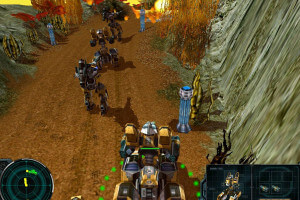
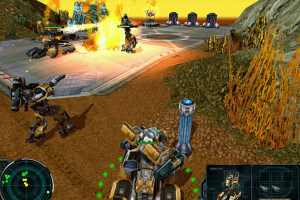
- Planetary battles are working on 3D engine, so if you want you can change only the resolution of battles. Open cfg.txt and find
RobotResolution= line, change it to the resolution you need - If you don't like standard fonts in game - you can use smooth font mod, simply replace font file in game directory
- The game has many different gameplay settings, so if you feel that the game is too hard - try to enable or disable some of settings
- If you have troubles with Russian version of the game - check this thread
- Don't forget to check PCGamingWiki page if you have troubles
- Also, you can check Steam forums or GOG forums




 English
  Russian





 Czech
Czech 


Comments and reviews
WARNING:
The "Resolution Patch" (435k) is a FIRM detection (G-Guard antivirus) for virus/malware.
Worked fine, but started crashing when selling minerals :(
We have updated the game, added original Russian version of the game, and some fixes for comfort play on modern systems
No comment nor review for this game at the moment.