






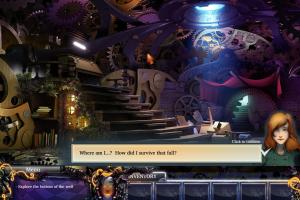
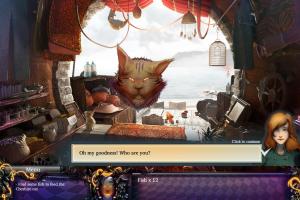
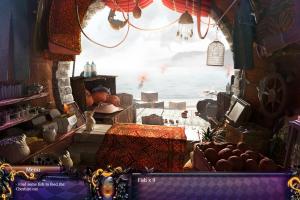
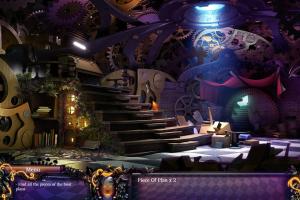
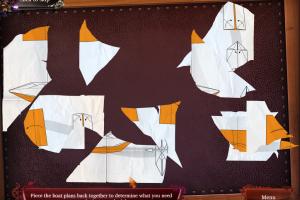


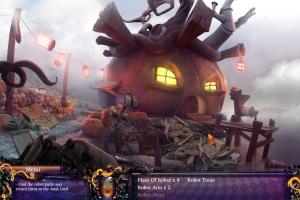
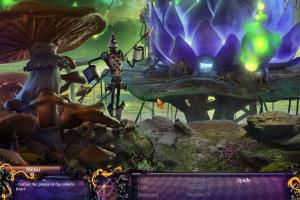
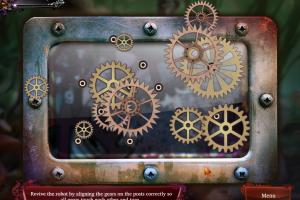
How to Play
The game has been tested on Windows 7 64-bit and Windows 10, it works fine. You may experience some small troubles when you play the game on modern systems, check our Notes for details
Notes:
- If the game doesn't work - run it in Compatibility mode with old Windows (like Windows XP) and as Administrator. Also, it is recommended to install all versions of Microsoft Visual C++ Redistributable and NET Framework for the correct work of the game
- The game works on DirectX 9, so if you're using Windows 8, 8.1, 10 or 11 - you need to enable DirectPlay: Go to Control Panel, and select 'Programs'. Select 'Turn Windows features on and off', click on 'Legacy Components' and check the box 'DirectPlay'. Select OK, once the installation is done, restart your computer
- If the game doesn't start - make sure that the path to the game folder has ONLY the English letters. Additionally, try to install Macromedia Flash 8 from here or Adobe Flash Player, many old casual games were using Macromedia/Adobe Flash technology
- When you create a profile in game, it should have ONLY the English letters. If the game doesn't save the progress - check if the savegames folder has any non-English symbols, the game makes the savegames in
C:\Users\%USERNAME%\AppData\Roaming\Merscom\Alicefolder. If you system username has any non-English symbols - create a new user profile in your system with only English letters in the username, and play the game from that new user profile - If you have any graphical issues, such as flickering screen or disappearing mouse cursor - switch the game to Windowed mode in settings
- There can be a rare bug in the game when the click on active objects doesn't work. To fix it exit to main menu and then continue the game, it should help
- If you stuck at some hard place in the game, here's the walkthrough guide. If you play the Russian version, we also recommend to check this thread
 English
  German
  Russian






Comments and reviews
No comment nor review for this game at the moment.