
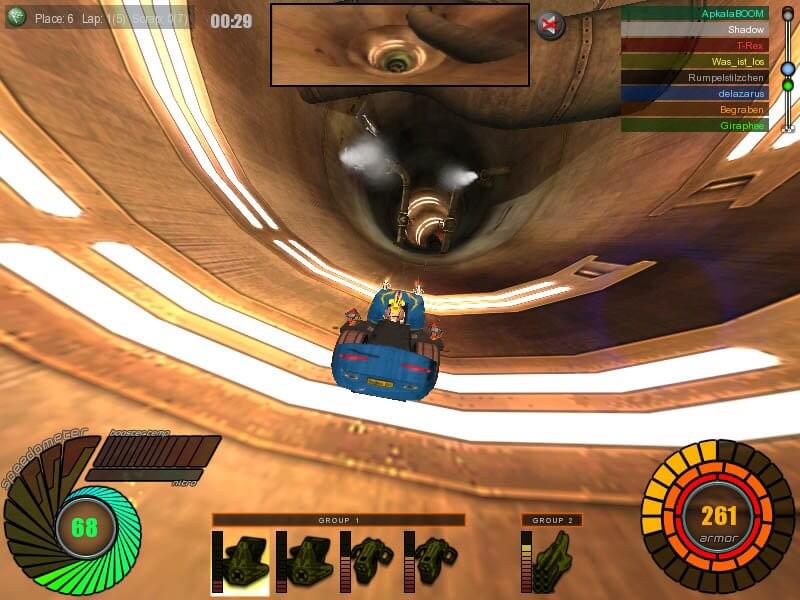
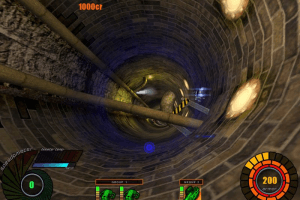
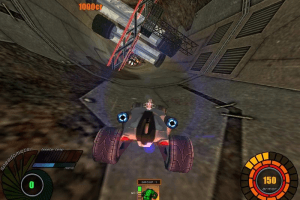
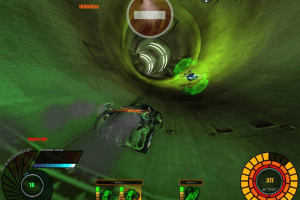
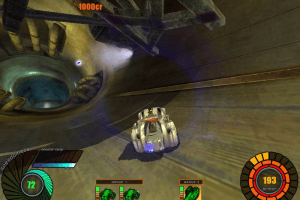
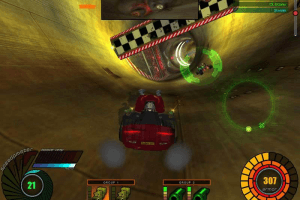
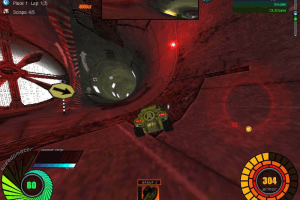
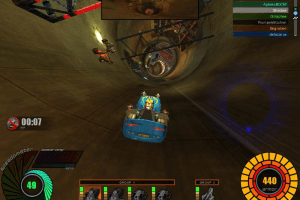
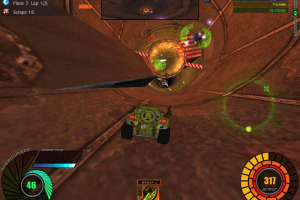
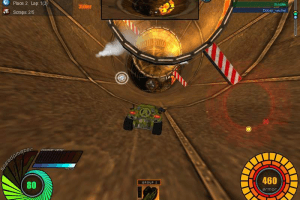
How to Play
Install & play guide:
- Mount the disc image. You will need the utility for mounting disc image files, like WinCDEmu, UltraISO, Alcohol 52%/Alcohol 102% or Daemon Tools Lite
- Install the game
- Also it is recommended to install DirectX 9 from the disc (if you're using Windows 10 - enable DirectPlay, read this or this guide how to do it)
- After you installed the game - install Windows 7 fix (simply put dll-files from the archive in main game directory, otherwise the game will show "Register xml error")
- Open the directory with the game and find Lagsters.exe. Right click on Lagsters.exe - Properties - Compatibility - Set "Run this app in compatibility mode with Windows XP" and "Run as administrator"
- Launch the game and play. If the game doesn't work - try to launch the game, then open Task Manager (Ctrl+Alt+Del by default) and check for processes Lagsters.exe and rundll32.exe. Close Lagsters.exe but don't touch rundll32.exe (it's a Windows app for running old apps from 32-bit operational systems, most old games running through rundll32.exe). Now try to launch the game again, it must work. Don't forget to close rundll32.exe process in Task Manager after finishing playing
The game with fix has been tested on Windows 7 64-bit, Windows 8/8.1 and Windows 10, works okay
Notes:
- If you have freezes or lags during playing - open Task Manager, find Lagsters.exe, click on it with right mouse button - Set affinity - disable all cores excepet "CPU 0" (leave only "CPU 0"). This game is from the times when the was no such thing as HyperThreading
- By default the max resolution of the game is 1280x1024, but you can launch the game in higher resolution through dgVoodoo(also, with dgVoodoo you can launch the game with texture filtering and antialiasing; please note that dgVoodoo doesn't work on Intel graphics)
 English
  Polish
  Russian





Comments and reviews
Doesn't save new profile after creating it
No comment nor review for this game at the moment.