


How to Play
The game has been tested on Windows 7 64-bit, Windows 8 and Windows 10, it works fine. You may experience some small troubles when you play the game on modern systems, check our Guide and Notes for details
Install & play guide:
- Mount the disc image. You will need the utility for mounting disc image files, like WinCDEmu, UltraISO, Alcohol 52%/Alcohol 120% or Daemon Tools Lite
- Install the game, select the "Maximum" installation. It is recommended to install the game not in default path, but in some other, non-system folder, like
C:/Games/Ballerburg - Open the folder with installed game and find Ballerburg.exe. Right-click on Ballerburg.exe -> Properties -> Compatibility -> Set "Run this app in compatibility mode with Windows XP" and "Run as administrator"
- Launch the game and play. If the game doesn't work in compatibility mode with Windows XP - try to launch it in compatibility mode with other version of Windows (Windows 95, 98, etc.)
Notes:
- If the installation doesn't start - try to launch MaxInst.exe as Administrator and in Compatibility mode with old version of Windows (98, 2000 or XP)
- It is recommended to install all versions of Microsoft Visual C++ Redistributable and NET Framework for the correct work of the game. Also it is recommended to install K-Lite Codec Pack for the correct work of in-game videos
- The game works on Direct3D 6, so if you're using Windows 8, 8.1, 10 or 11 - you need to enable DirectPlay: Go to Control Panel, and select 'Programs'. Select 'Turn Windows features on and off', click on 'Legacy Components' and check the box 'DirectPlay'. Select OK, once the installation is done, restart your computer
- All versions of the game are DRM-Free, simply install & play. The original German release was protected with CDilla2 DRM, but we found DRM-Free version from Computer Bild Spiele magazine. We uploaded NoCD just in case if someone will be looking for it
- Don't minimize the game window (by pressing Alt+Tab or Windows button), otherwise the game will be showing only the black screen
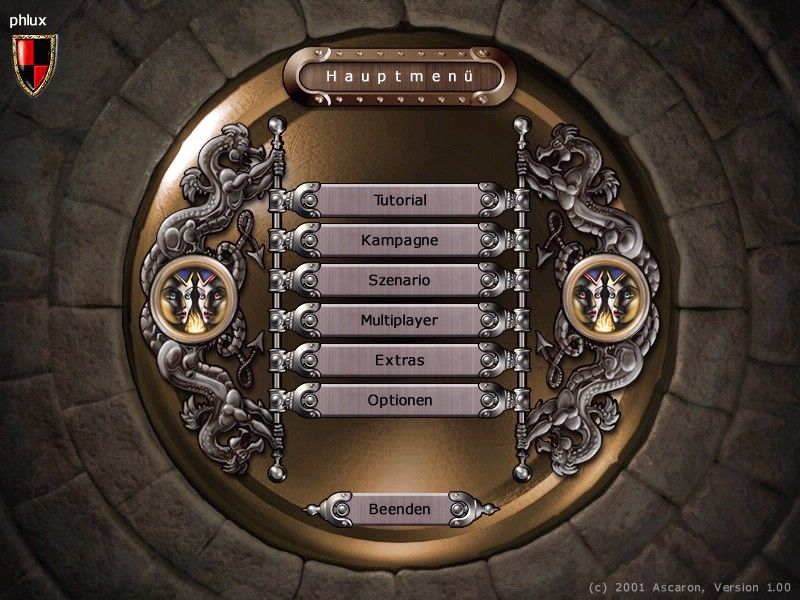
- There's a multiplayer mode in the game, with hot-seat for local play on one computer and LAN client for multiplayer through LAN. LAN mode can be launched directly from the main menu, but if it doesn't work or the game crashes with no error - mount the ISO image in virtual drive, launch autorun.exe from the disc and select "Start LAN client". To play the game in multiplayer with remote players, you will need to use LAN emulators like Hamachi or RadminVPN, since the game doesn't have an online multiplayer client
- If you have problem with broken sound effects or disappearing sound - first try to change the sound settings. If it didn't work - set sound quality to 24 bit, 48000 Hz or 24 bit, 44100 Hz. Read this guide how to do that
 English
  German
  Russian







Comments and reviews
Well done Game! Loved the comments from the instructor 😂
No comment nor review for this game at the moment.