



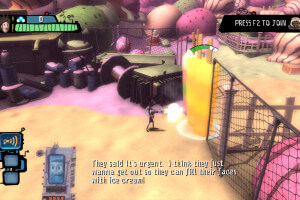
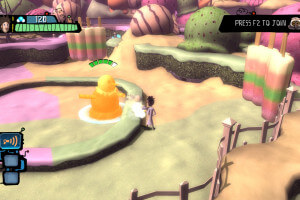
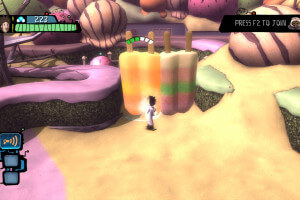
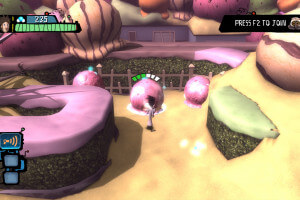
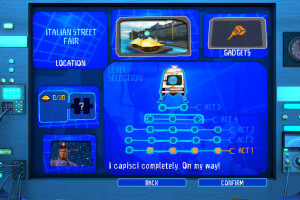
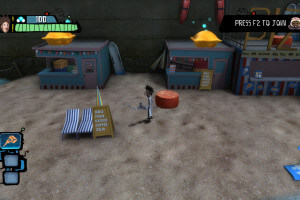
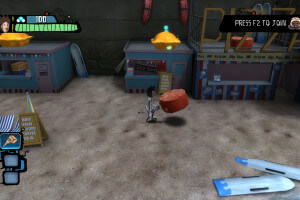
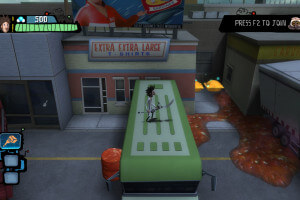
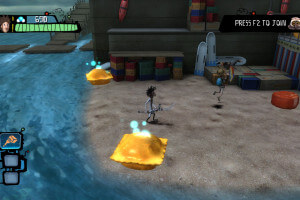
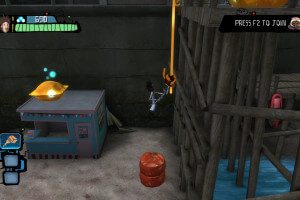
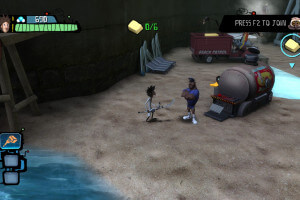
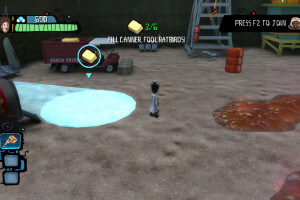
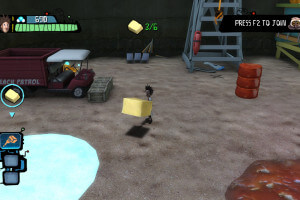
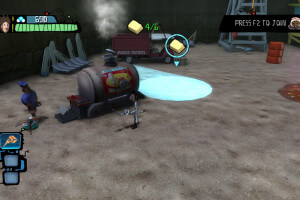
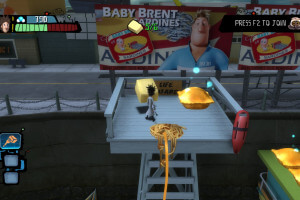
How to Play
Your antivirus may trigger on ISO image of European version of the game, because of Cracktro.exe file inside. That ISO image is a scene release, and that file is "trash" file left by scene releaser, it is not used by installer and you can ignore it, all other files on that disc are clear.
Files for other versions are dumps of original DVDs and has no "trash" files inside. The game has been tested on Windows 7 64-bit and Windows 10, it works fine. You may experience some small troubles when you play the game on modern systems, check our Guide and Notes for details
Install & play guide:
- Mount the disc image. You will need the utility for mounting disc image files, like WinCDEmu, UltraISO, Alcohol 52%/Alcohol 120% or Daemon Tools Lite
- Install the game (if autorun doesn't work - simply launch the installation from Setup.exe inside the disc)
- Also make sure that you enabled DirectPlay if you didn't make it before, read this or this guide how to do it (if you're using Windows 7 or older - just install DirectX from the disc)
- Open the directory with installed game and find JadeEngine_Final.exe. Right click on JadeEngine_Final.exe - Properties - Compatibility - Set "Run this app in compatibility mode with Windows XP" and "Run as administrator"
- Launch the game and play. If the game doesn't work in compatibility mode with Windows XP - try to launch it in compatibility mode with other version of Windows (Windows 95, 98, Win2000, etc.)
Notes:
- If the installation doesn't start - try to launch Setup.exe in compatibility mode with old version of Windows (98, 2000 or XP) and as administrator
- It is recommended to install all versions of Microsoft Visual C++ Redistributable, and NET Framework for the correct work of the game for the correct work of the game
- Also it is recommended to install RAD Video Tools and K-Lite Codec Pack for the correct work of the game
- The game works on DirectX 9, so if you're using Windows 8, 8.1, 10 or 11 - you need to enable DirectPlay: Go to Control Panel, and select 'Programs'. Select 'Turn Windows features on and off', click on 'Legacy Components' and check the box 'DirectPlay'. Select OK, once the installation is done, restart your computer
- If you run the game and see the pop-up window "The app has been blocked for your protection" - re-install the game in non-system folder, like
C:/Games/Cloudy with a Chance of Meatballs. That trouble usually happens because of Windows Security system, when it can block apps running from system folder, likeC:/WindowsorC:/Program Files, the simplest solution is to just re-install the app in non-system folder, the longer solution is to get full administrator rights in Windows - If you still have troubles with installation or launch of the game - try to use Full-Rip, it is already pre-installed game, simply exctract the archive & play
- In rare cases, on Windows 7 or older, at the end of installation you can get error
"This application has failed to start because d3dx9_37.dll was not found. Re-installing the application may fix this problem". In that case install DirectX 9 from the disc before installing the game, it should save the trouble. Or put d3dx9_37.dll inC:/Windows/system32folder - The game supports high and widescreen resolutions up to 4K, but some resolution may be not available in Options. You can enable custom resolutions by editing hardware.ini file. Also, you can change refresh rate in same hardware.ini, here's the guide
- Don't forget to check PCGamingWiki if you have troubles
 English
  French
  German
  Italian
  Spanish
  Czech
Czech  Russian







Comments and reviews
Is it safe to download this in Germany?
Adoro este juego
thanks,i search for this game
I think this game might be copy-protected, but if it's worked for someone else, then I suppose it might not be
downloaded the game for my lil sis, it works.
saya ingin bermain berawan dengan kemungkinan bakso
No comment nor review for this game at the moment.