

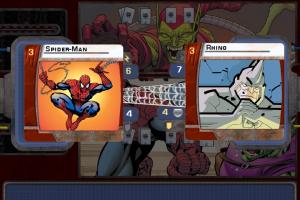
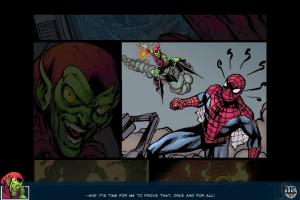
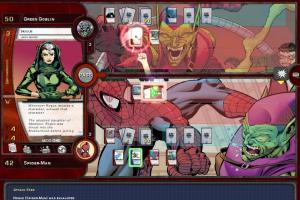
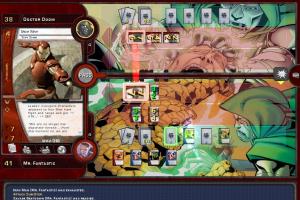
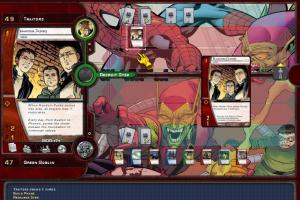
How to Play
The game with NoCD has been tested on Windows 7 64-bit and Windows 10, it works fine. Before installation - if you're using Windows 8, 8.1, 10 or 11 - make sure that you enabled DirectPlay if you didn't make it before, read this or this guide how to do it (if you're using Windows 7 or older - just install DirectX from the disc)
Install & play guide:
- Mount the disc image. You will need the utility for mounting disc image files, like WinCDEmu, UltraISO, Alcohol 52%/Alcohol 120% or Daemon Tools Lite
- Install the game (if autorun doesn't work - simply launch the installation from Installer.exe inside the disc)
- It is recommended to install the game not in default path, but in some other, non-system folder, like
C:/Games/Marvel TCG, so you won't have troubles with NoCD - After you installed the game - use NoCD, simply copy MarvelVs.exe from the archive and put it into game directory, agree to replace original file
- Open the directory with the game and find MarvelVs.exe. Right click on MarvelVs.exe - Properties - Compatibility - Set "Run this app in compatibility mode with Windows XP" and "Run as administrator"
- Launch the game and play. If the game doesn't work in compatibility mode with Windows XP - try to launch it in compatibility mode with other version of Windows (Win98, Windows ME, Win2000, etc.)
Notes:
- Your antivirus may trigger on NoCD, it showed 17 warnings on VirusTotal scan, here's the report. All warnings are generic, about unsafe or suspicious/possibly malicious file, it is safe to use. But if you want 100% safety, you can use Virtual Machine to run that file. Optionally, you can use mini-image to bypass disc check
- If the installation doesn't start - try to launch Setup.exe in compatibility mode with old version of Windows (98, 2000 or XP)
- It is recommended to install all versions of Microsoft Visual C++ Redistributable and NET Framework for the correct work of the game. Also it is recommended to install K-Lite Codec Pack for the correct work of in-game videos
- The game works on DirectX 9, so if you're using Windows 8, 8.1, 10 or 11 - you need to enable DirectPlay: Go to Control Panel, and select 'Programs'. Select 'Turn Windows features on and off', click on 'Legacy Components' and check the box 'DirectPlay'. Select OK, once the installation is done, restart your computer
- The game is using SecuROM DRM protection, which may have issues on modern systems and requires the disc for launch. NoCD "breaks" DRM protection and allows to run the game without the disc
 English







Comments and reviews
No comment nor review for this game at the moment.