You are on the beta version of My Abandonware. The live site is still myabandonware.com. Your favorites and ratings here are copied to the live site. Comments and other changes are not — we delete them every morning at 08:00 Paris time, when this site goes down for about an hour. Leave feedback through this link to Pastel (email required).
The beta goes down at 08:00 Paris time, in a few minutes. We rebuild the database from the live site. It comes back in about an hour.
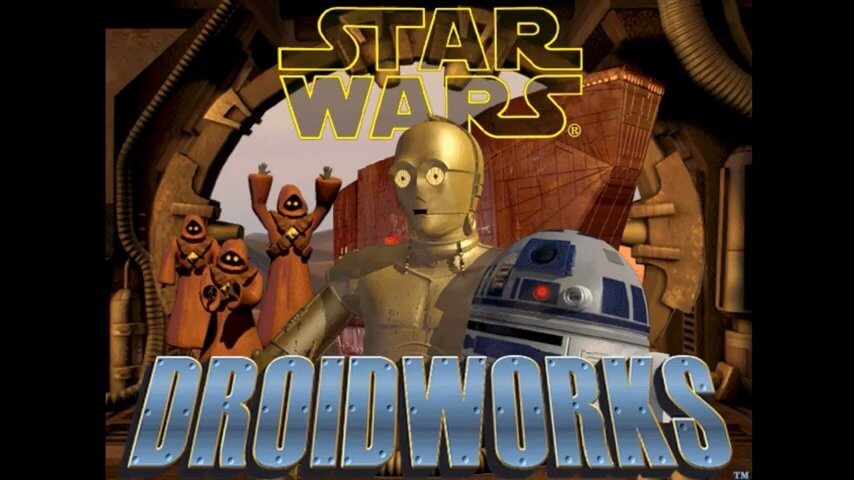
Star Wars: DroidWorks no-cd fix and steam deck compatibility Download xdelta patch and follow ALL instructions below Patch hosted here: https://1fichier.com/?ooza0d6ymw4fgpl4xaua (mirrored on this page as a FIX)
- Mount the cd-rom of the game (by inserting your legally aquired physical copy of the games cd into the cd-rom drive) - Run Launch.exe and install the game
- Copy the Movie folder from cd-rom drive to the star wars droid works installation folder - Copy the dwCD.gob file from cd-rom drive to the star wars droid works installation folder
Note: I tested this on a custom - FULL install - and then copied the entire contents of the cd-rom over the files inside of the full install. But I believe the above steps are the bare minimum needed to fully play the game aside from applying the "no-cd fix" patch below. The difference is only around 20mb either way around 460mb one way and around 480mb the other.
- Right click xdelta patcher and run as administrator - Select DroidWorks.exe as file to patch and load the included xdelta file as the patch - Apply patch
You should now be able to play the game without the cd-rom
Note: There is a bug when the game is run on modern hardware where you can not go up hills unless you wiggle the mouse. I created a steam controller input overlay that solves this by continually(turbo function) wiggling the mouse(move mouse by pos 1,1) when you move(arrow up or arrow down) and the bug is not very noticable when playing with a steam input layer using this controller profile.
To run the game on a steam deck: - Rename the installation folder from "Star Wars DroidWorks" to "StarWars-DroidWorks" or else the game will not launch(folder names can not contain spaces) - Go to desktop mode and launch steam and select add non steam game - Select DroidWorks.exe - Go to properties and under compatibility force it to use proton, I am using proton experimental - Name the game "Star Wars: DroidWorks" - Search under community controller profiles all layouts for the latest version v1.3+ of the steam input overlay community profile that I have shared(Game must be named the same)
1
Skinner17 Jan. 2021
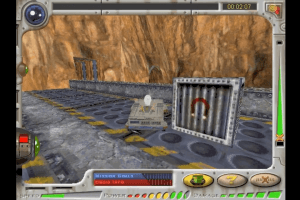
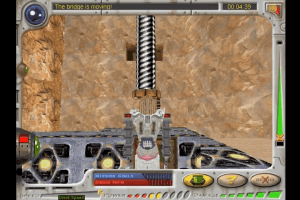
I think I've overcome the "climbing" problem. We defintely need to use DxWnd and set the renderer to SDL and VSync to ON. It will slow the game down when you move the mouse, but it's also the solution! When you droid can't climb an incline, just slightly move the mouse: it'll create a little bug that immediately allows your droid to climb! You might even climb inclines that your droid normaly couldn't! :-)
2
Skinner15 Jan. 2021
I launched the game the way PCGamingWiki says (I used DxWnd, set the renderer to SDL and forced VSync to "ON" in the DirectX(2) tab) but my droid still can't climb an incline.
Help please? :-(
0
Krzyasian02 Jul. 2020
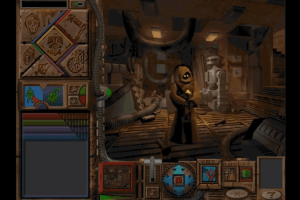
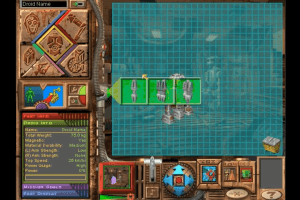
This game inspired me to eventually become an engineer. I remember making cool robots that did not really function well then getting frustrated and modifying it to see what would work.
4
No comment nor review for this game at the moment.









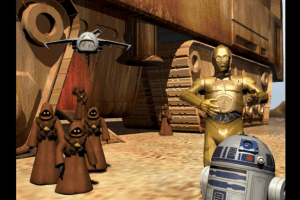
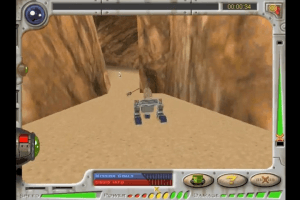
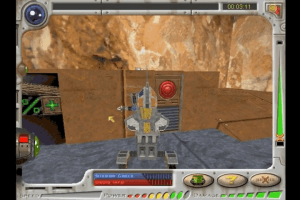
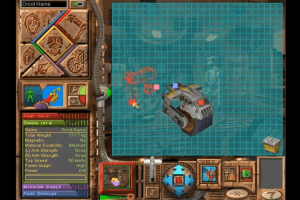
 English
  German
  French





Comments and reviews
Can't find the .exe in order to run it via DxWnd
Update : French version just provided :
https://archive.org/details/droid-works-fr-cd/
German version :
https://archive.org/details/star-wars-droids-droidworks-german
Star Wars: DroidWorks no-cd fix and steam deck compatibility
Download xdelta patch and follow ALL instructions below
Patch hosted here: https://1fichier.com/?ooza0d6ymw4fgpl4xaua (mirrored on this page as a FIX)
- Mount the cd-rom of the game (by inserting your legally aquired physical copy of the games cd into the cd-rom drive)
- Run Launch.exe and install the game
- Copy the Movie folder from cd-rom drive to the star wars droid works installation folder
- Copy the dwCD.gob file from cd-rom drive to the star wars droid works installation folder
Note: I tested this on a custom - FULL install - and then copied the entire contents of the cd-rom over the files inside of the full install. But I believe the above steps are the bare minimum needed to fully play the game aside from applying the "no-cd fix" patch below. The difference is only around 20mb either way around 460mb one way and around 480mb the other.
- Download a xdelta patcher to apply the "no-cd fix" I created to the DroidWorks.exe file
https://github.com/marco-calautti/DeltaPatcher/releases
Specifically I used deltapatcher v3.0.1
https://github.com/marco-calautti/DeltaPatcher/releases/download/v3.0.1/deltapatcher_v3.0.1_win_x86.zip
- Right click xdelta patcher and run as administrator
- Select DroidWorks.exe as file to patch and load the included xdelta file as the patch
- Apply patch
You should now be able to play the game without the cd-rom
Note: There is a bug when the game is run on modern hardware where you can not go up hills unless you wiggle the mouse. I created a steam controller input overlay that solves this by continually(turbo function) wiggling the mouse(move mouse by pos 1,1) when you move(arrow up or arrow down) and the bug is not very noticable when playing with a steam input layer using this controller profile.
To run the game on a steam deck:
- Rename the installation folder from "Star Wars DroidWorks" to "StarWars-DroidWorks" or else the game will not launch(folder names can not contain spaces)
- Go to desktop mode and launch steam and select add non steam game
- Select DroidWorks.exe
- Go to properties and under compatibility force it to use proton, I am using proton experimental
- Name the game "Star Wars: DroidWorks"
- Search under community controller profiles all layouts for the latest version v1.3+ of the steam input overlay community profile that I have shared(Game must be named the same)
I think I've overcome the "climbing" problem. We defintely need to use DxWnd and set the renderer to SDL and VSync to ON. It will slow the game down when you move the mouse, but it's also the solution! When you droid can't climb an incline, just slightly move the mouse: it'll create a little bug that immediately allows your droid to climb! You might even climb inclines that your droid normaly couldn't! :-)
I launched the game the way PCGamingWiki says (I used DxWnd, set the renderer to SDL and forced VSync to "ON" in the DirectX(2) tab) but my droid still can't climb an incline.
Help please? :-(
This game inspired me to eventually become an engineer. I remember making cool robots that did not really function well then getting frustrated and modifying it to see what would work.
No comment nor review for this game at the moment.