


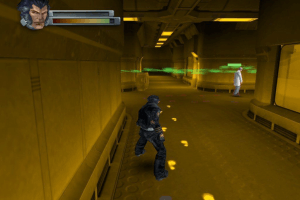
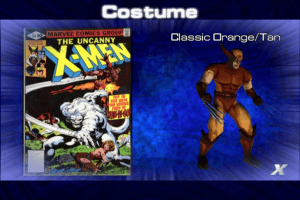
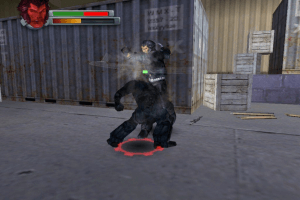
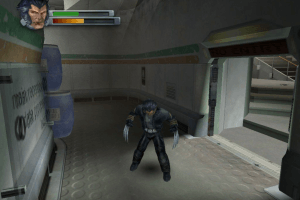
How to Play
Windows
The game with Widescreen Fix has been tested on Windows 7 64-bit, Windows 8 and Windows 10, it works fine. We also tested the game with Widescreen Fix and dgVoodoo 2 on Windows 7 64-bit and Windows 10, it works fine too. You may experience some small troubles when you play the game on modern systems, check our Guide and Notes for details
Install & play guide:
- Mount the disc image of first CD. You will need the utility for mounting disc image files, like WinCDEmu, UltraISO, Alcohol 52%/Alcohol 120% or Daemon Tools Lite
- Launch the installation (if autorun doesn't work - simply launch the installation from Setup.exe inside the disc). It is recommended to install the game not in default path but in some other, non-system folder, like
C:/Games/X2 Wolverine's Revenge, so you won't have troubles with fixes - When the installation process will ask for CD2 - mount the disc image of CD2. Both discs must be mounted in the same drive, so first un-mount the disc image of previous disc and only then mount the next disc image. CD2 is the same for both the US and European releases!
- After you installed the game - use Widescreen & FOV Fix by jackfuste, the installation instruction is inside the archive. That fix adds the support for widescreen and also removes disc protection
- (If you don't want to use the Widescreen & FOV Fix, you can use old NoCD to play the game without the disc, simply replace Wolvie.exe inside the game folder)
- Open the game folder and find Wolvie.exe. Right-click on Wolvie.exe -> Properties -> Compatibility -> Set "Run this app in compatibility mode with Windows XP" and "Run as Administrator"
- Launch the game and play. If the game doesn't work in compatibility mode with Windows XP - try to launch it in compatibility mode with other version of Windows (Windows 95, 98, 2000, etc.)
If you're playing the game on Windows 8 or newer OS - we recommend to use Widescreen & FOV Fix by jackfuste. It is not only adds the support for wide screen resolutions, but also has the better perfomance on modern systems!
Notes:
- If the installation doesn't start - try to launch Setup.exe in compatibility mode with old version of Windows (98, 2000 or XP)
- It is recommended to install all versions of Microsoft Visual C++ Redistributable and NET Framework for the correct work of the game. Also it is recommended to install K-Lite Codec Pack for the correct work of in-game audio and video
- The game works on DirectX 8, so if you're using Windows 8, 8.1, 10 or 11 - you need to enable DirectPlay: Go to Control Panel, and select 'Programs'. Select 'Turn Windows features on and off', click on 'Legacy Components' and check the box 'DirectPlay'. Select OK, once the installation is done, restart your computer
- The game doesn't have any DRM protection, only the simple disc check. If you want to play without the disc, you can use old NoCD or Widescreen & FOV Fix, both variants has the executable with removed disc protection. To play without the disc simply replace the original Wolvie.exe in game folder with Wolvie.exe from NoCD or Widescreen & FOV Fix
- If you get "No 3D hardware was found" error - that happens when the game cannot find Wolvie.ini file. To fix it simply download Wolvie.ini from our website and put it in game folder
- By default the game supports only 4:3 screen ratio, but you can play the game in wide screen resolutions by using the Widescreen & FOV Fix from jackfuste, it adds the support for high and wide screen resolutions with correct FOV (Field of View). To install Widescreen & FOV Fix replace Wolvie.exe in the game folder, then launch the game one time to create Wolvie.ini config-file. After that close the game and edit Wolvie.ini file in Notepad, select the desired screen resolution by editing numbers in
ScreenWidth=andScreenHeight=lines (for example, if you want to run the game in 1920x1080 screen resolution, enterScreenWidth=1920andScreenHeight=1080). With that fix you can play the game on all widescreen resolutions, including UltraHD 4K, ultrawide and multi-display setups, check WSGF page for example screenshots; also check this thread for more information about that fix - Also, that widescreen fix works as NoCD, so you can use it to play the game without the disc. If you're playing on Windows 8 or newer OS - better to use Wolvie.exe from Widescreen & FOV fix, because that exe-file showed the better performance on modern systems
- If you have the issue when the game freezes or crashes, try to run it with the next compatibility settings: right-click on Wolvie.exe -> Properties -> Compatibility -> Set "Run this app in compatibility mode with Windows XP SP2" and "Run as administrator" and check "Disable visual themes", "Disable desktop composition" and "Disable display scaling" boxes, it should help
- Also, if the game crashes when you exit to pause menu - make sure to run the game in compatibility mode with Windows XP SP2. It seems that running the game in compatibility mode with Windows XP fixes most of random crashes
- On modern systems the game may work slow, have unstable framerate or other issues, so it is recommended to run the game with one of display wrappers, the best variant would be to use dgVoodoo 2. To do that copy the dll-files from the
MS/x86folder, dgVoodooCpl.exe and dgVoodoo.conf to the game folder, next to Wolvie.exe. To change dgVoodoo 2 settings, run dgVoodoo Control Panel (dgVoodooCpl.exe) as administrator; it is recommended to enable "Fast video memory access" setting in DirectX tab. After you changed dgVoodoo 2 settings, run the game as usual from Wolvie.exe. Also, with dgVoodoo 2 you can run the game with Texture filtering and Anti-aliasing to get the better graphics, you can find such settings in dgVoodoo Control Panel - If you are experiencing low/inconsistent framerates - make sure to run the game in compatibility mode with Windows 7 or older Windows, like Windows XP. If you still experience framerate issues - run the game through dgVoodoo 2 and turn on "Fast video memory access" in the dgVoodoo Control Panel (dgVoodooCpl.exe)
- If you get the glitch with missing shadows, it can be fixed by running the game through dgVoodoo 2. Run dgVoodoo Control Panel (dgVoodooCpl.exe) as administrator and set dgVoodoo 2 settings as in this guide
- If you has the issue with broken graphics, like all in-game textures are in low resolution - in the game go to Video Options -> Advanced and set "MipBias" setting to 0
- The game has Vertical Sync (Vsync) setting but it is broken on modern operating systems. Since the game uses DirectX 8, if you have Windows 10 or newer, you will need to use one of display wrappers to enable Vsync in the game. For example, if you play with dgVoodoo 2, you can enable Vsync in dgVoodoo Control Panel (dgVoodooCpl.exe). If you enable Vsync with dgVoodoo 2, try to set the display's refresh rate to 60 Hz, that way you probably will have the smoother framerate since the game's framerate is capped at 64 FPS
- The game has controller support but it has some compatibility issues with modern XInput-type gamepads (Xbox gamepad or similar), so it is recommend to use this fix for XInput-type gamepads. If you have any other issues with gamepad or the game doesn't recognize your controller - try using one of the additional tools from PCGamingWiki guide for controllers
- Some people have troubles when the installer doesn't see CD2 in virtual drive. The recommended method of fix is to convert the disc image of CD2 to ISO (the files on our website are already converted to ISO). Also, you can try to install the game by using this method: start installing the game, cancel the installation when you get the error, the installer will ask if you want to remove the partial install, click "No" to save the game files. After that mount the disc image of CD2, go to
Setup/Datadirectory and copy the wholemoviesfolder inside the directory with installed game. After that use NoCD or Widescreen Fix and replace the original Wolvie.exe, now the game should work. As easier alternative, you can use download our Full-Rip or use the repack by MasterEGA - If you has the issues running the game with dgVoodoo 2 or other display wrapper, try to run the game through 3D Analyze app. Select in 3D Analyze settings "Force SW TnL" or "Emulate HW TnL caps" (only one of that settings, don't select any other settings) and try to launch the game. Please note that we didn't test that method ourselves
- If you don't like the camera speed in the game, you can use this mod to enable debug menu in the game and change the camera speed. You can also change other game settings in debug menu. To use that mod you will need a CheatEngine utility
- Don't forget to check PCGamingWiki page if you have any troubles, it is very useful!
Mac
Visit MacintoshGarden for more details about Mac version
 English
  French
  German
  Spanish
  Italian
  Russian





Comments and reviews
This fixed the “No 3D hardware was found” error for me: set these 4 options under properties - compatibility: Windows XP (Service Pack 3), Disable fullscreen optimizations, Run this program as administrator, and Run in 640×480 screen resolution. Then add d3d8.dll and dgVoodooCpl from dgVoodoo2 to the game folder and enable Fast Video Memory Access in dgVoodooCpl. High res, wide screen and 50 fps (european version) working after hours of testing
Hello, i use Widescreen fix by jackfustes English version 1 MB and pcgamingwiki (Fixing missing shadows glitch) for "No 3d Hardware was found on your system. This game requires a 3d graphics accelerator to run".
Hi, I've tried to run the game, but this message popped up: "No 3d Hardware was found on your system. This game requires a 3d graphics accelerator to run". Is there a wa to fix it?
Russian bootleg :
https://archive.org/details/x-2-cd/
Here is a multilingual: https://archive.org/details/x-2-wolverines-revenge_202509
Many thanks for the repack version.
Man, this game is just broken piece of shit. Like seriously, I tried to played it for many times. I gave it many chances but it is just unfinished broken game.
@Jungle Juggler
The PS2 version still does not work properly on the most popular emulator. It only works in software mode. Does not work in OpenGL or direct3D mode. The graphics are poor but playable. I take Full-Rip + dgVoodoo2 app. Regards :)
Its easier to Emulate the PS2 or Gamecube version.
So if anyone can't get the PC version running, do that instead and save yourself all the hassle with instaltion, compatibility and patches/NoCD etc.
We have updated the game, added more languages and Full-Rip, plus fix and instructions how to install the game, hope it helps
Guys do what monkeypancakes92 said and copy paste Wolvie.exe file (the one with 2.848KB size) in to Activision folder.
Hey guys!
Someone please could explain me step by step how to install this game? It doesn't want to accept cd2. Thank you!
Hey thanx man! Cheers!
90S GAMER,
Hey... Search for torrminatorr forum!
Cheers!
akon/ amir Suryadi yang tinggal di Pekojan Jakarta mata duitan jasa service komputer Rp 400000 dibayar 3x lipat + makan. penipu jual laptop Toshiba rusak
so which ver i should download iso or manual?
So for this to work at all you need to do is use isobuster and pull all the game files out of the iso you made and put it in a folder then you just have to put the no cd crack file where the game exe is and overwrite it and that's it
The installer says i don't have enough space for the game how do i fix this ?
Installed successfully, but not beeing able to lauch it in windows 10, even when changing compatibility settings. any hint?
For those who have problems mounting the images
Get a MDF to ISO converter and convert the CD that isn't working
Have fun
Anyone having issues with the install? Disk 1 not recognised by Daemon tools - Disk 2 fine - any tips?
is game soooo goooooooooood
Does anyone have X-Men - Origins: Wolverine? That game is from 2009 but no online store is selling it anymore, so technically it could be considered abandonware. I don't think anyone will mind if this is on the site, considering that no one is legally selling it, except maybe for used copies on Ebay and Amazon. Just a thought.
I used to watch my friend play this game as i didnt have pc than i fell in love with this game
Problem with disk 2
It can't be fixed
Help!!
How do I install this? I'm not finding any .exes in the Disc One or Disc Two folders or anything. Is there some separate other program I need that I've missed?
Anyone having issues with the 2 disc install like Zypher said, go ahead and open disc 1 and run the install like normal.
It's going to ask for disc 2 but it probably wouldn't recognize the file in the digital drive.
Exit out of the set up but when it asks if you want to remove the partial install DON'T click okay. Keep all the files you installed.
That's when you take the NO DISC file from here, the file is named Wolvie, and you go to where it's installed and replace the old Wolvie app.
It should be up and running now.
I went in circles trying to get that to work and all I had to do was not delete the partial install :P
Hope this helps.
Second disk doesn't read for me using virtual clone CD. Which prevents the game from installing properly (Can't install a no-cd patch if the installer won't finish)...
May work if you can burn it though, but the second image is 798MB, so it needs to be on DVD.
How to install?
No comment nor review for this game at the moment.